
Use this guide to add an extra layer of protection to the CBD iBusiness Mobile App using security features available on supported Android devices.
Supported Android Devices
The following device manufacturers provide built-in features that can help protect access to CBD iBusiness:
Device Manufacturer | Security Feature |
Samsung Galaxy | Secure Folder |
Google Pixel (Android 15+) | Private Space |
Xiaomi / Redmi / POCO | App Lock |
OnePlus | App Lock |
OPPO | App Lock |
Realme | App Lock |
Huawei | App Lock |
HONOR | App Lock |
Note: Feature availability may vary depending on your device model, Android version, and manufacturer software.
Option 1: App Lock
Available on: Xiaomi, Redmi, POCO, OnePlus, OPPO, Realme, Huawei, HONOR devices.
App Lock allows you to add an additional authentication step before opening CBD iBusiness, even when your device is already unlocked.
Step 1: Open Settings
Open the Settings application on your device.
Step 2: Locate App Lock
Navigate to one of the following sections (may vary by device):
- Security
- Privacy
- Security & Privacy
- App Lock
Step 3: Enable App Lock
- Select App Lock.
- Set up the required security method if prompted.
- Enable Fingerprint or Face Recognition authentication where available.
Step 4: Protect CBD iBusiness
- Locate CBD iBusiness in the application list.
- Enable App Lock for the application.
Step 5: Access CBD iBusiness
When opening the application, you will be prompted to authenticate using:
- Fingerprint
- Face Recognition
- PIN
- Pattern
- Password
Option 2: Google Private Space
Available on: Google Pixel devices running Android 15 or later.
Private Space creates a separate locked area where applications can be installed and accessed only after authentication.
Step 1: Open Settings
Open the Settings application.
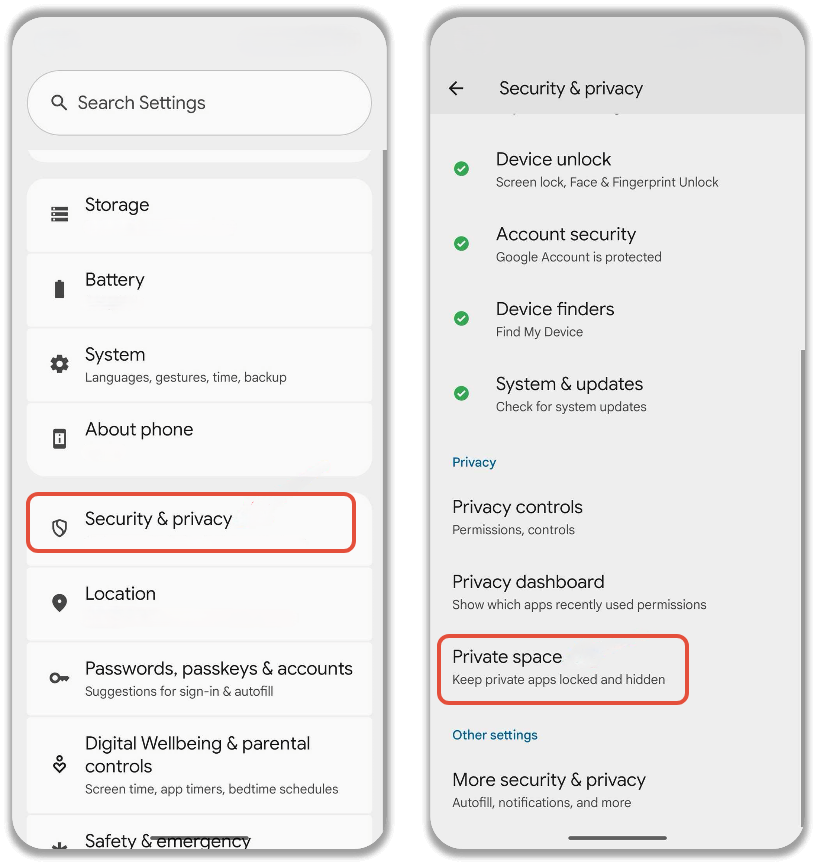
Step 2: Open Private Space
- Navigate to Security & Privacy.
- Select Private Space.
Step 3: Set Up Private Space
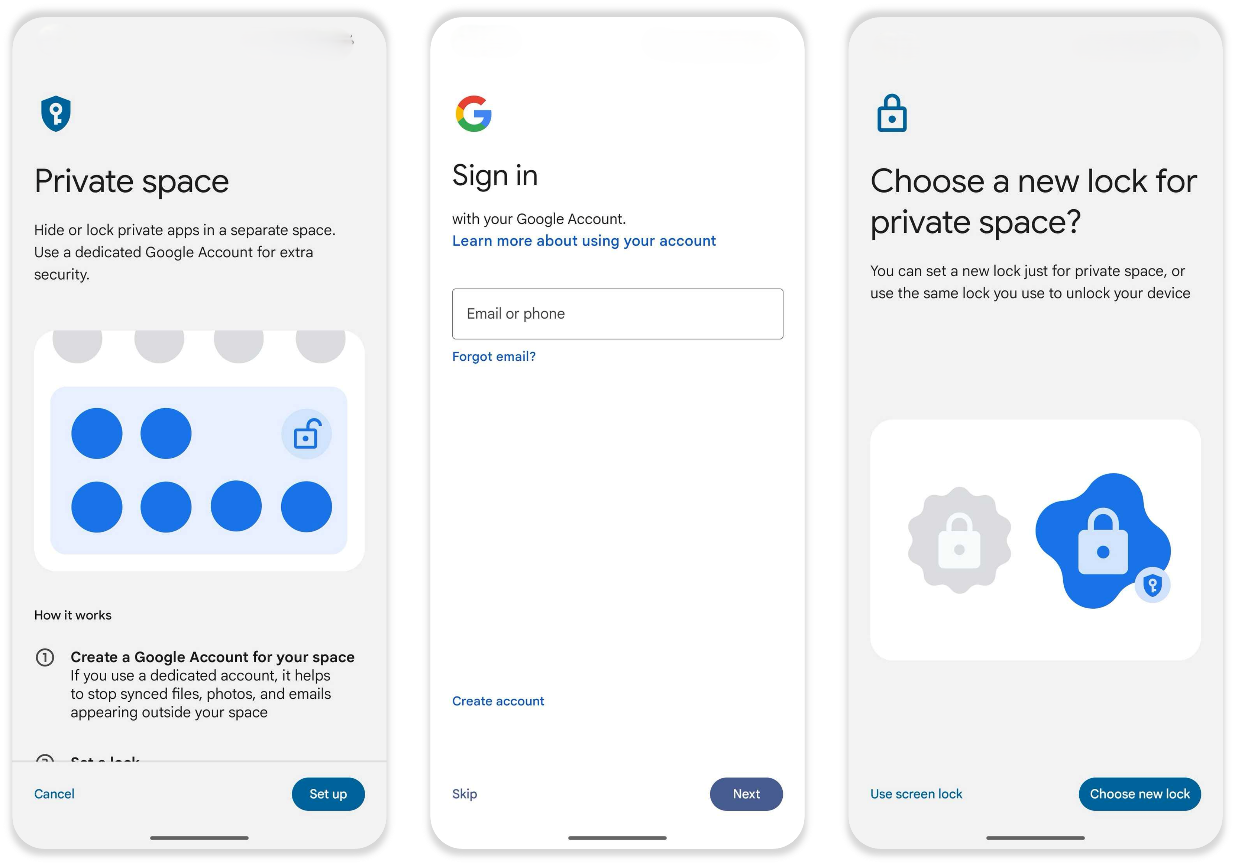
- Select Set Up.
- Follow the on-screen instructions.
- Choose whether to use your device lock or a separate lock for Private Space.
Step 4: Install CBD iBusiness
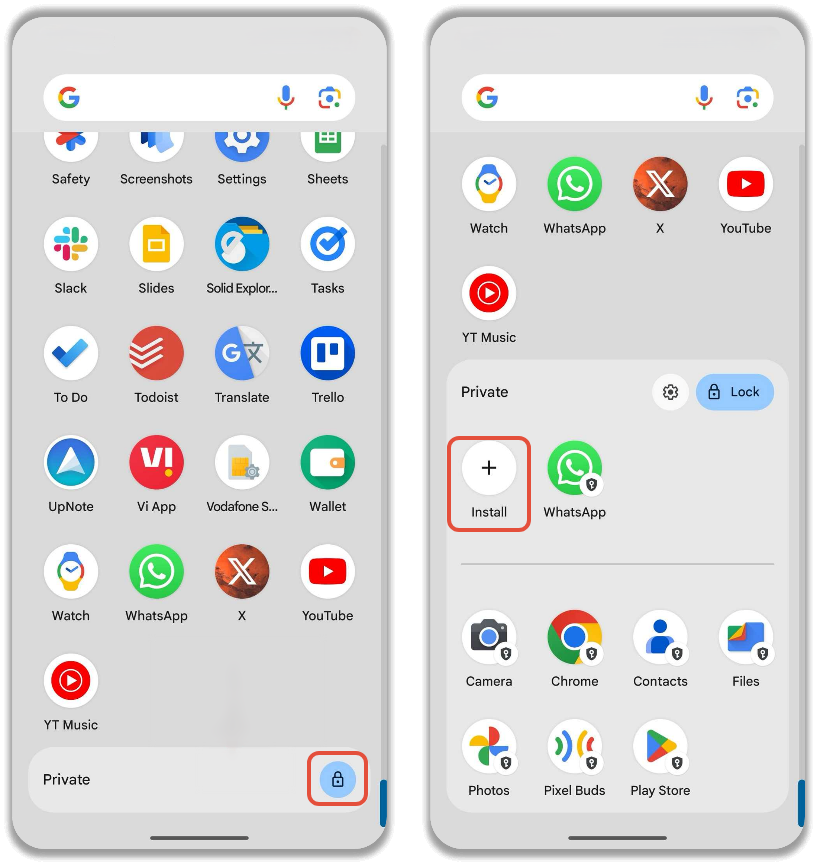
- Open the App Drawer.
- Unlock Private Space.
- Select Install Apps.
- Install CBD iBusiness within Private Space.
Step 5: Access CBD iBusiness
- Open the App Drawer.
- Unlock Private Space using:
- Fingerprint
- Face Recognition
- PIN
- Password
- Launch CBD iBusiness from Private Space.
Benefits
- Additional authentication before access.
- Separate protected environment.
- Enhanced privacy for sensitive applications.
Option 2: Samsung Secure Folder
Available on: Supported Samsung Galaxy devices.
Secure Folder creates a separate encrypted area on your device where applications and data can be stored securely.
Step 1: Open Settings
Open the Settings application.
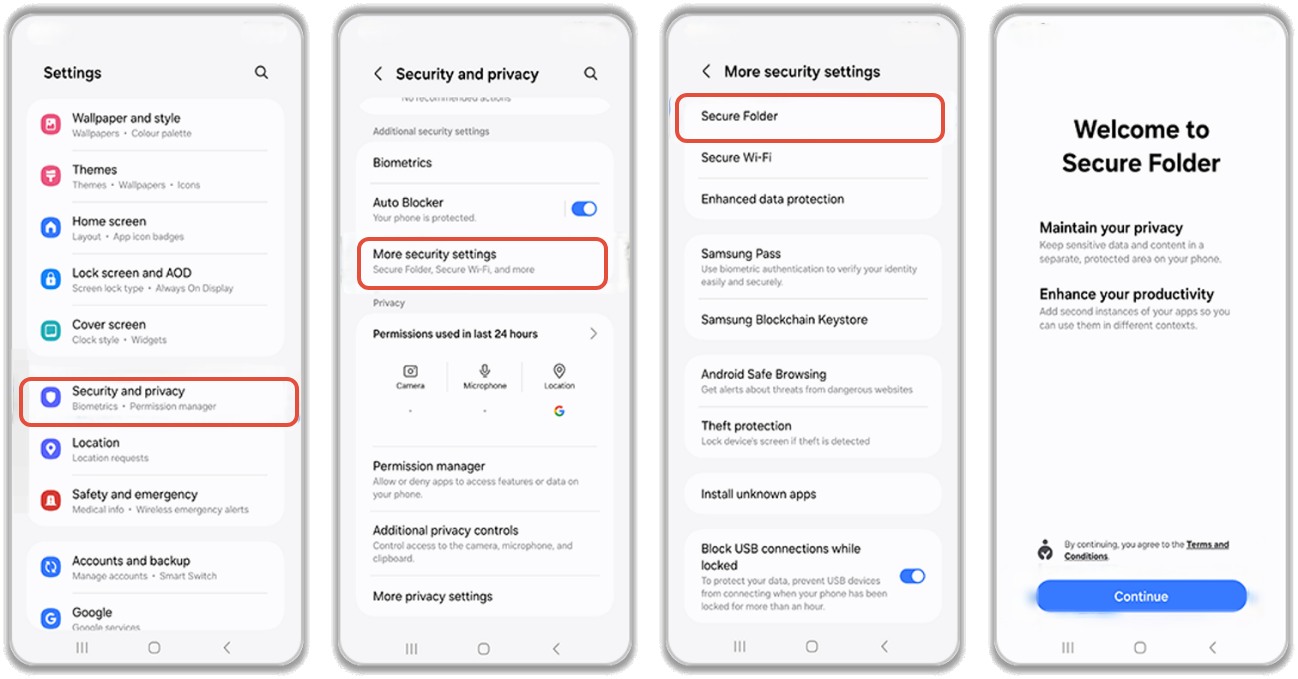
Step 2: Enable Secure Folder
- Navigate to Biometrics and Security.
- Select Secure Folder.
- Sign in with your Samsung Account if prompted.
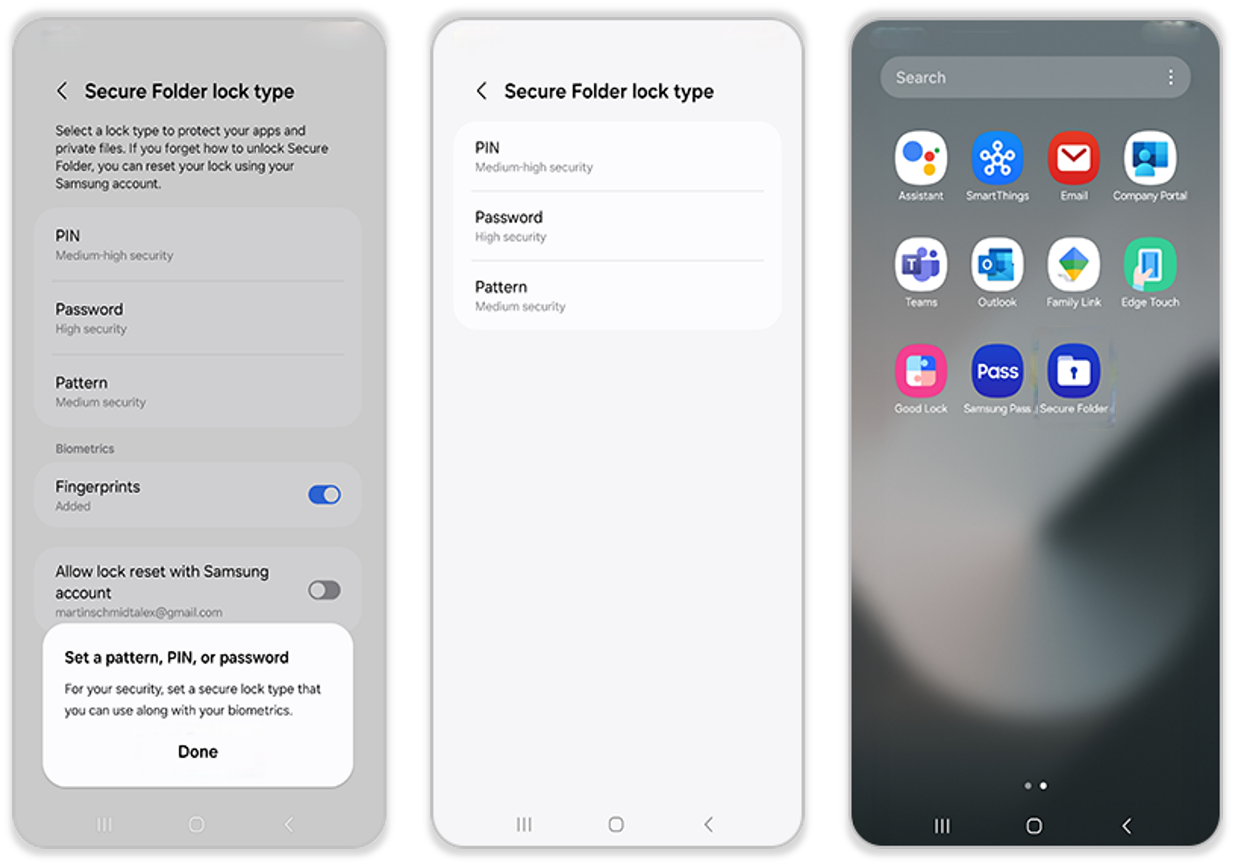
Step 3: Configure Security
Choose your preferred authentication method:
- Fingerprint
- PIN
- Pattern
- Password
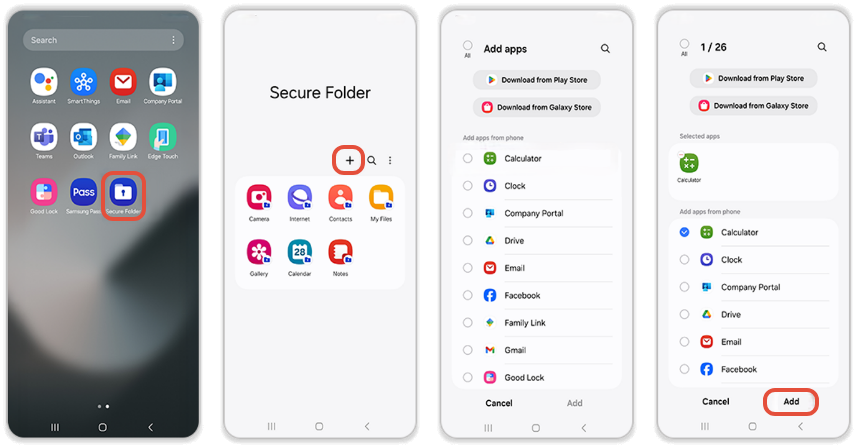
Step 4: Add CBD iBusiness
- Open Secure Folder.
- Select Add Apps.
- Choose CBD iBusiness from the list of installed applications.
Step 5: Access CBD iBusiness
- Open Secure Folder.
- Authenticate using your configured security method.
- Launch CBD iBusiness from within Secure Folder.
Benefits
- Encrypted storage.
- Additional biometric protection.
- Separation of business banking data from the rest of the device.