
Overview
This guide provides step-by-step instructions for creating and managing Alerts in iTrade.
Alerts allow users to receive notifications based on specific transaction events and dates, helping them monitor important milestones such as Issue Dates and Expiry Dates for Trade Finance transactions.
Step 1: Access Alert Maintenance
- From the iTrade Dashboard, navigate to Administration Alert Maintenance.
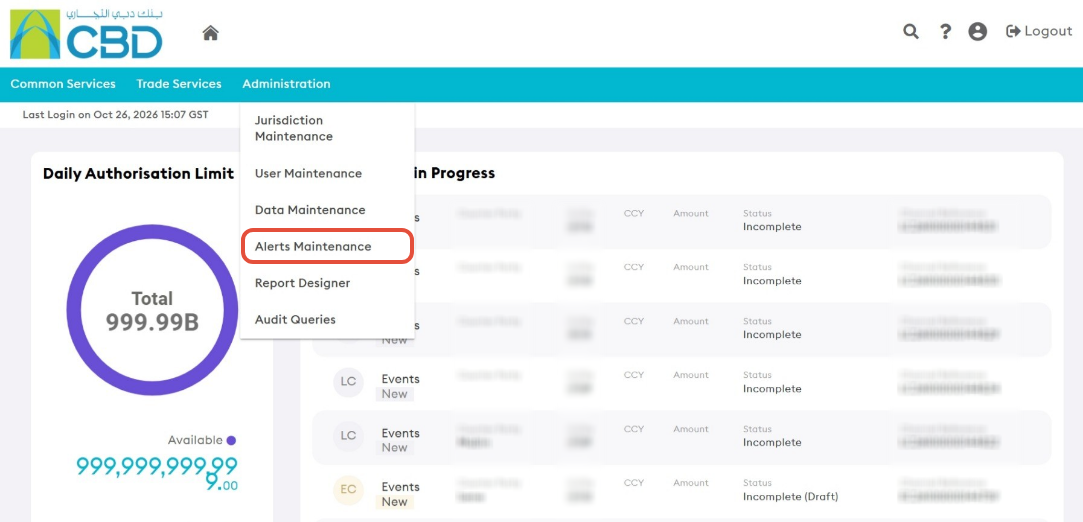
The Alert Maintenance screen allows you to create, view, and manage alerts for Trade Finance products.
Step 2: Create a New Alert
- Click Add New Alert.
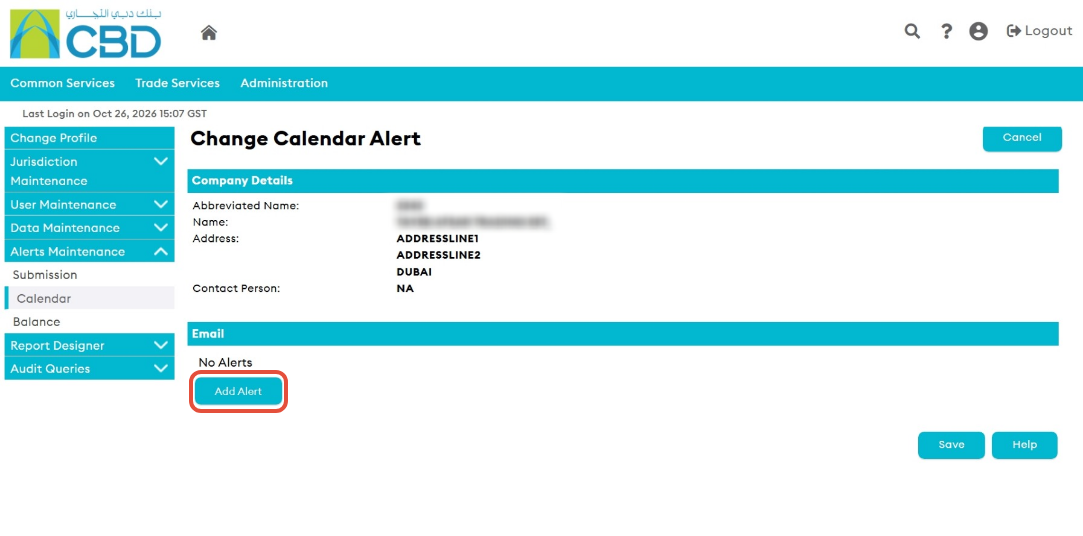
The alert configuration screen will open.
Step 3: Select the Product
Choose the Trade Finance product for which the alert should be generated.
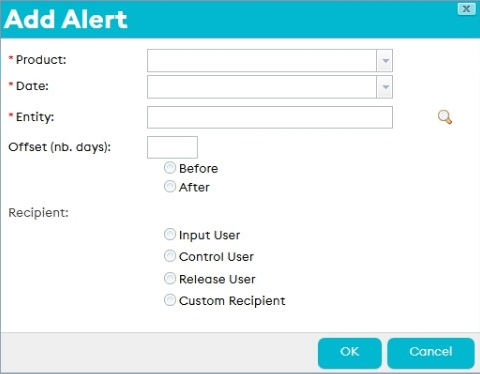
Examples may include:
- Import Letter of Credit
- Export Letter of Credit
- Import Collection
- Export Collection
- Shipping Guarantee
- Financing Request
- Undertaking Issued
The available products may vary depending on your organization's enabled services and permissions.
Step 4: Select the Alert Date Type
Choose the event that will trigger the alert.
Available options include:
Issue Date
Generate an alert based on the transaction's issue date.
Expiry Date
Generate an alert based on the transaction's expiry date.
Step 5: Configure the Alert Timing
Specify when the alert should be generated in relation to the selected date.
Offset Days
Enter the number of days before or after the selected date when the alert should be triggered.
Before or After
Select whether the alert should be generated:
- Before the selected date.
- After the selected date.
Example
- Expiry Date + 7 Days Before
- Issue Date + 3 Days After
This allows alerts to be configured according to business requirements and operational deadlines.
Step 6: Select the Alert Recipients
Choose the recipient or recipients who should receive the alert notification.
Recipients should be selected based on responsibility for monitoring and acting on the relevant transaction.
Step 7: Save the Alert
- Review the alert configuration.
- Verify:
- Product
- Date Type
- Offset Days
- Before/After Selection
- Recipients
- Click Save.
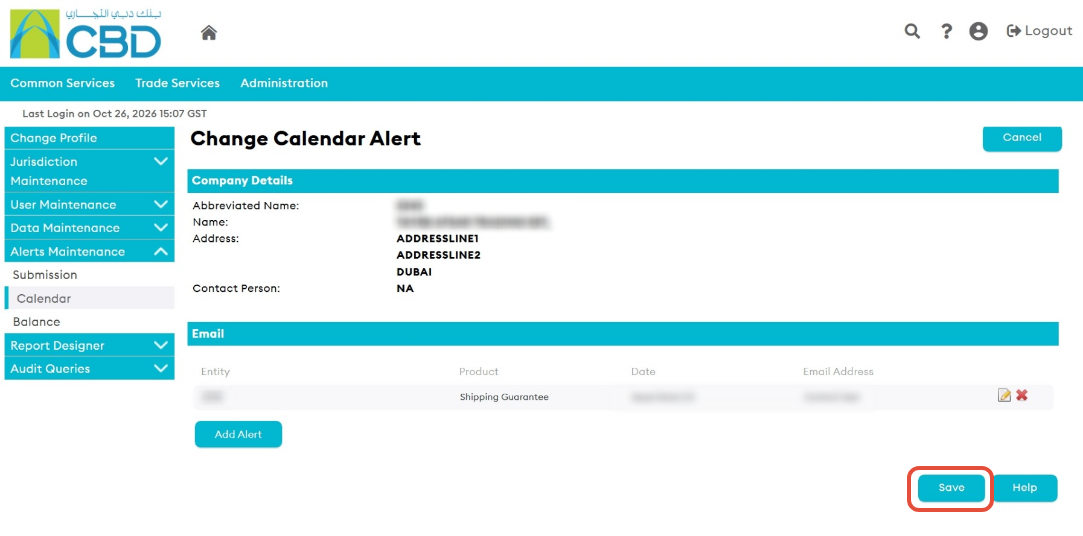
The alert will be created and activated according to the configured criteria.