
Overview
This guide explains how to generate and download an Audit Login Report in iTrade.
The Audit Login Report allows administrators and authorized users to review user login activity, filter results by date and user, and export the results for audit, compliance, investigation, or reporting purposes.
Prerequisite: Users must have the appropriate permissions to access Audit Queries within iTrade.
Step 1: Access Audit Queries
- Navigate to: Administration ➜ Audit Queries
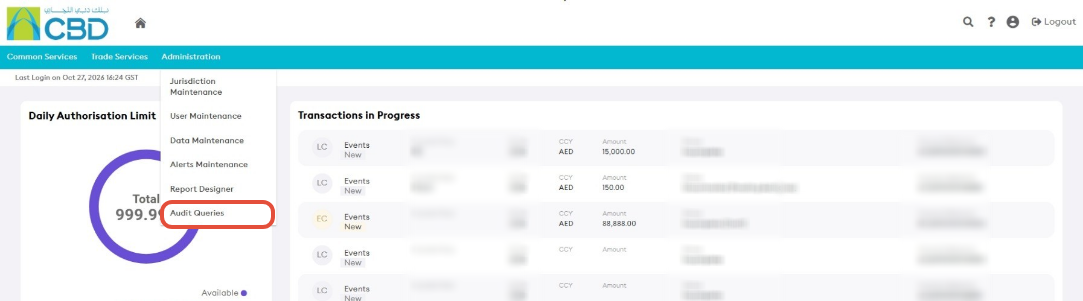
The Audit Queries module provides access to system audit information and user activity logs.
Step 2: Open the Login Audit Report
- From the Audit Queries menu, select: Audit Queries ➜ Login
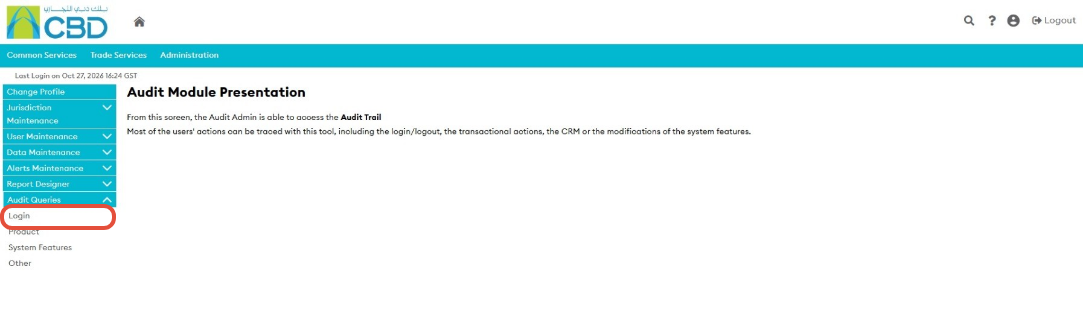
The Login Audit screen will open.
Step 3: Define Search Criteria
Select the criteria required for the audit report.
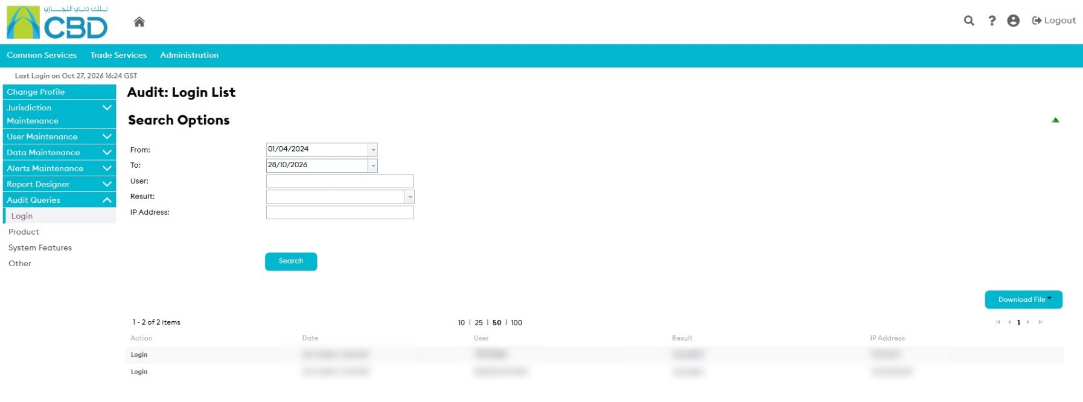
Date Range
Choose the period for which login activity should be displayed.
User
Select the specific user whose login activity you want to review.
Support Tip: Use a narrow date range when investigating specific login events to improve search performance and reduce the number of returned records.
Step 4: Select the Login Activity Criteria
Choose the login activity information that should be included in the report.
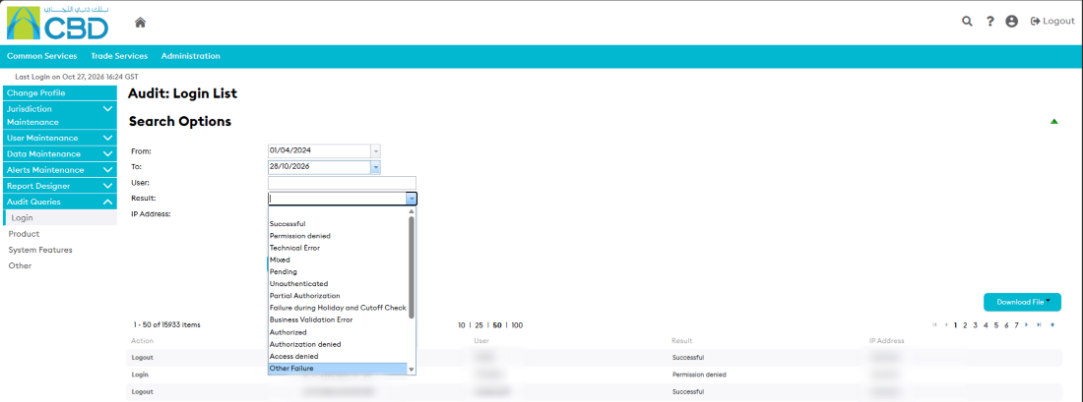
Examples may include:
- Successful login attempts
- Failed login attempts
- User access activity
- Login-related audit events
The available options depend on the system configuration and user permissions.
Step 5: Review the Results
After applying the required search criteria:
- Run the query.
- Review the returned login records.
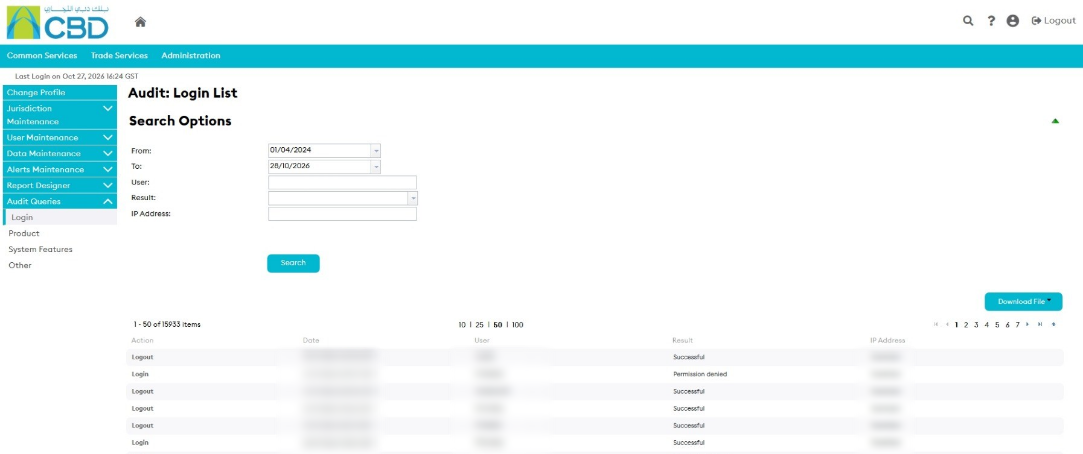
The results list displays the login activity that matches the selected criteria.
Note: The information displayed may vary depending on the selected filters and audit settings configured for your organization.
Step 6: Download the Report
To export the results:
- Click Download.
- Select the required file format.
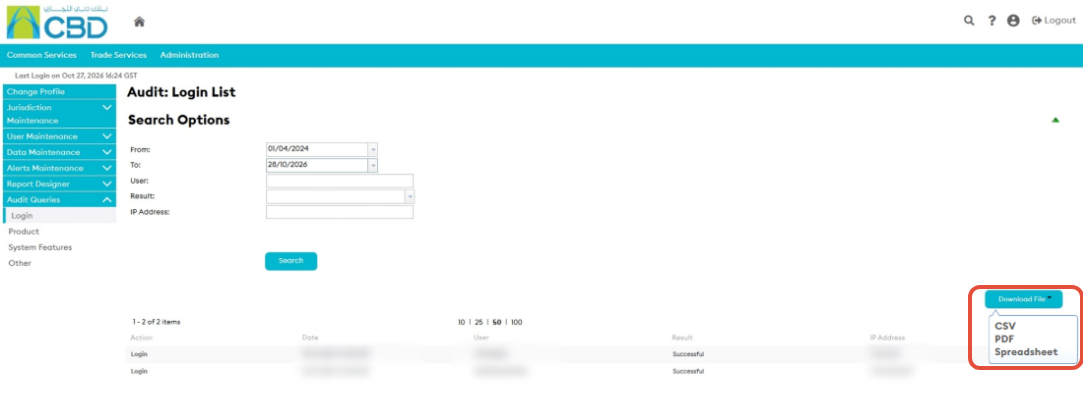
Available formats include:
- CSV
- Spreadsheet