
Overview
This guide provides step-by-step instructions for configuring Report Parameters in iTrade, including uploading a company logo and defining optional logo and footer text for reports.
The uploaded logo and text settings will be displayed on reports generated through the Report Designer module.
Step 1: Access Report Designer
- Navigate to: Administration ➜ Report Designer
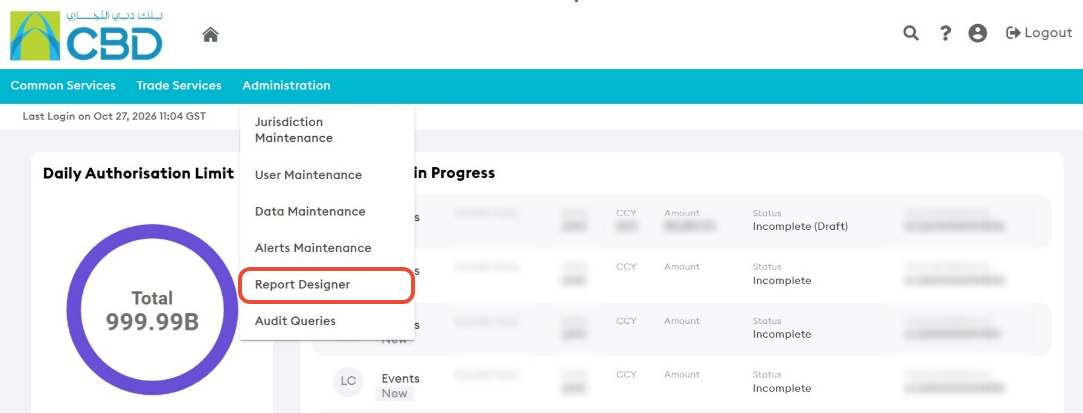
This will open the Report Designer administration section.
Step 2: Open Report Parameters
- Select Parameters from the Report Designer menu.
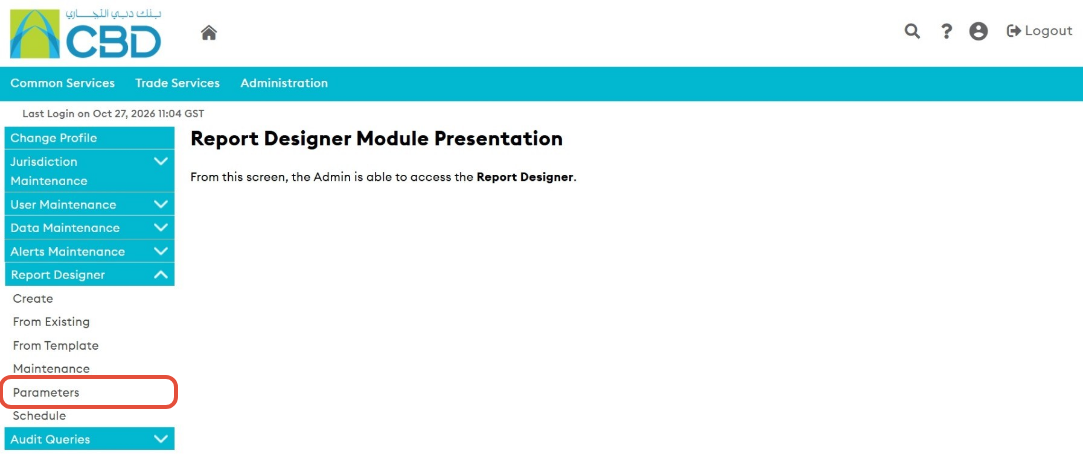
The Parameters screen allows you to manage report branding and display settings.
Step 3: Upload a New Logo
- Click Set a New Logo.
- Select the logo file you want to upload.
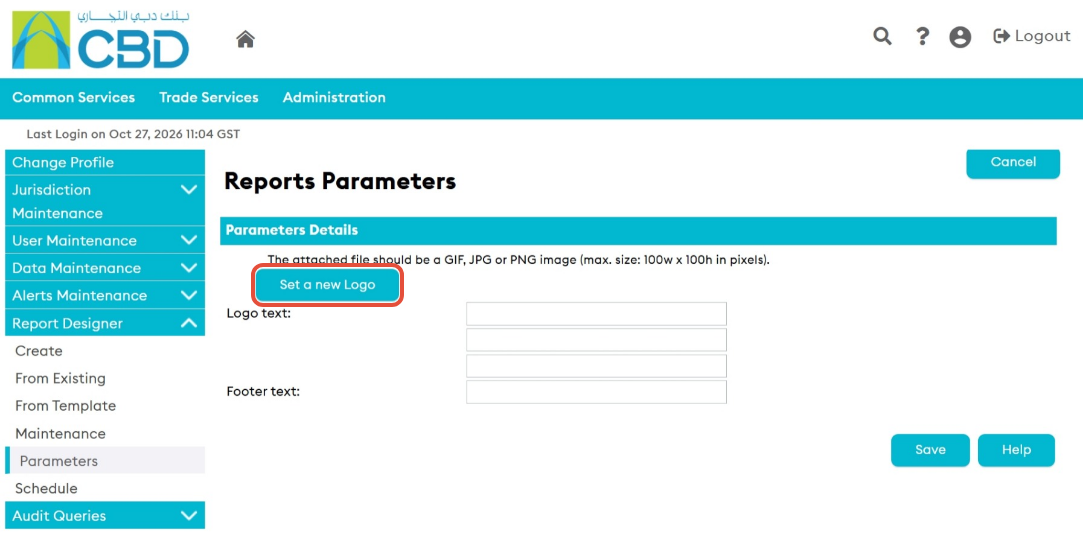
Logo Requirements
The uploaded logo must meet the following specifications:
- Maximum dimensions: 100 x 100 pixels
- Supported formats: GIF, JPG, or PNG
Important: Ensure the logo meets the size requirements before uploading to avoid display issues in generated reports.
Step 4: Select the Logo File
- Click Browse or Choose File.
- Locate the required image on your device.
- Select the file.
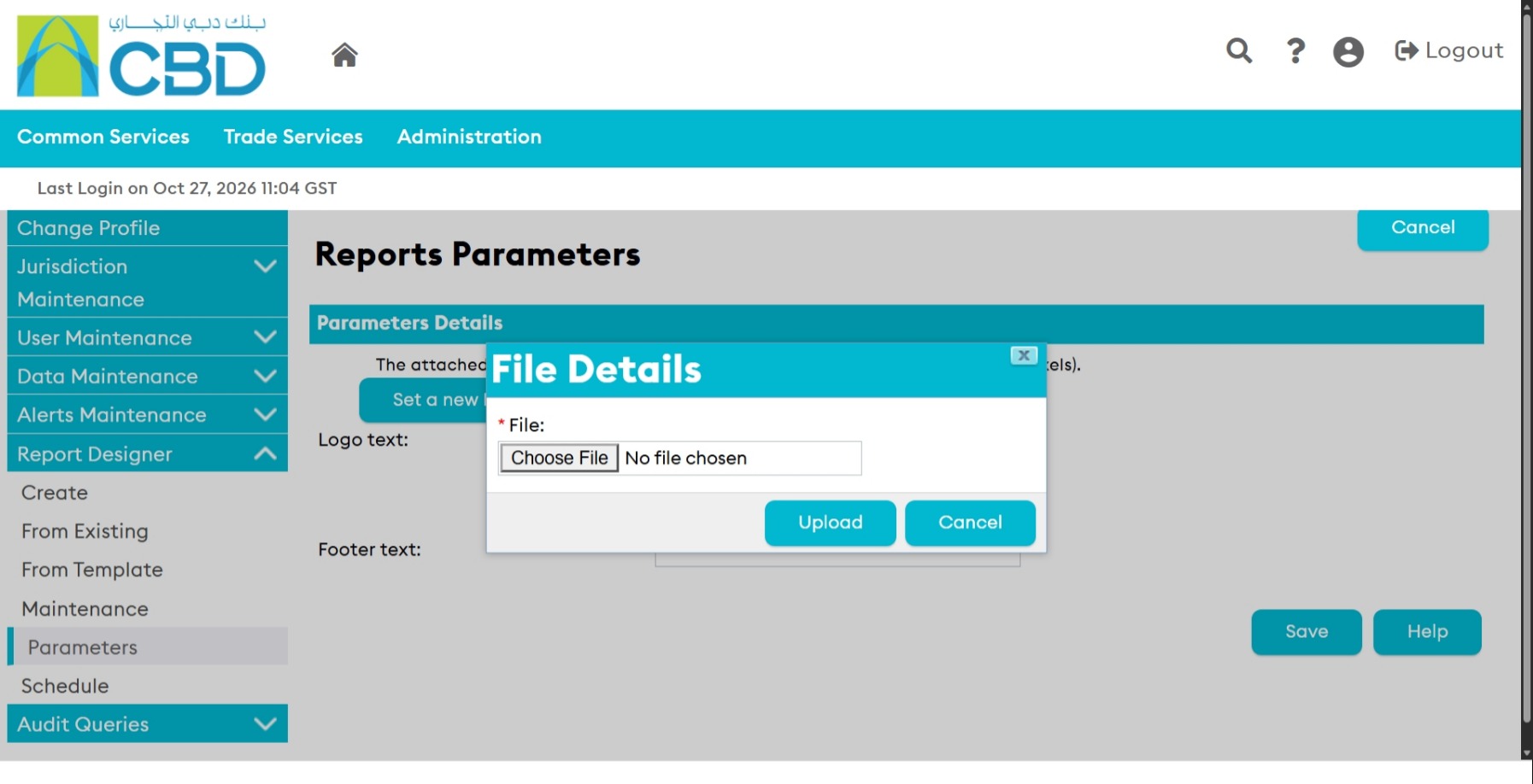
The selected file will be prepared for upload.
Step 5: Upload the Logo
- Verify that the correct image has been selected.
- Click Upload.
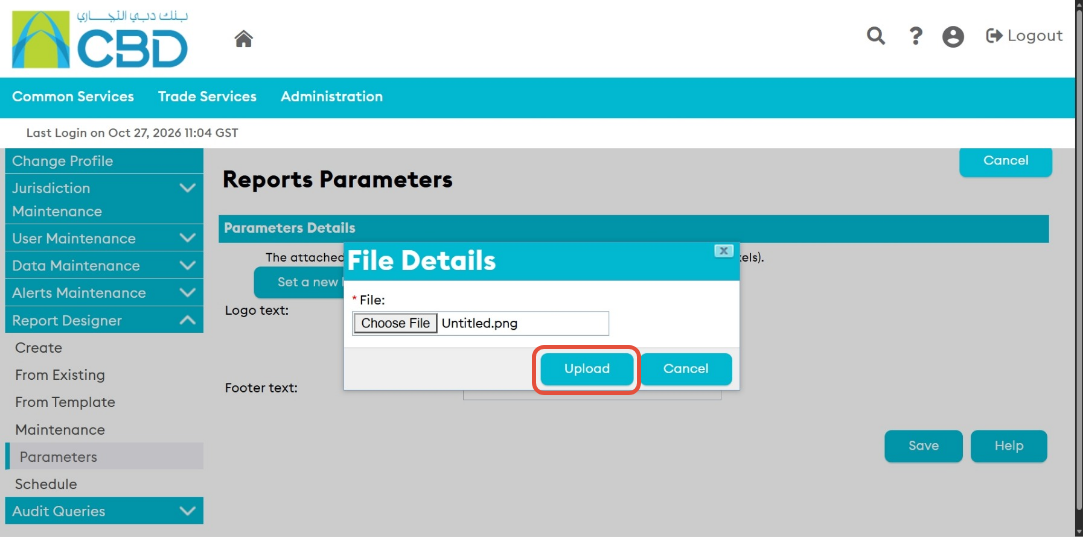
The logo will be uploaded and applied to report settings.
Step 6: Verify the Logo Preview
After the upload is complete, a preview of the logo will be displayed.
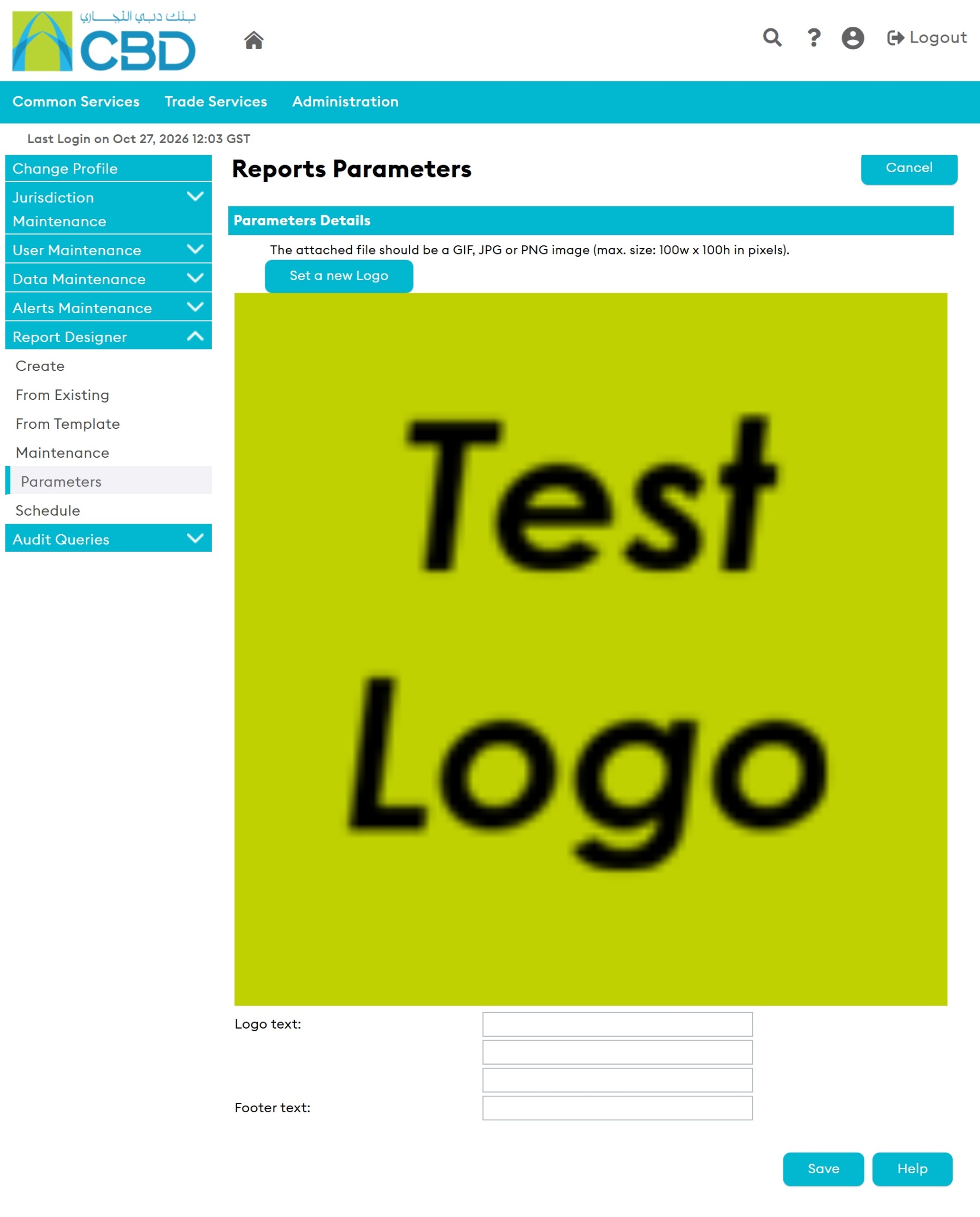
Review the preview to ensure:
- The correct logo was uploaded.
- The image displays correctly.
- The logo is clear and properly sized.
Step 7: Configure Logo Text and Footer Text (Optional)
You can add additional branding information to reports by configuring:
- Logo Text
- Footer Text
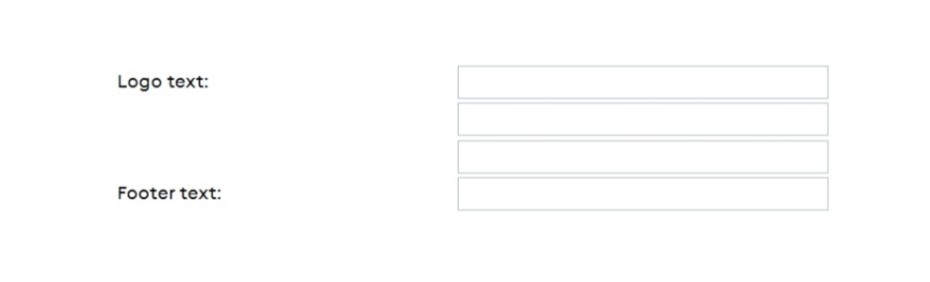
These fields can be used to display:
- Company name
- Report identifiers
- Contact information
- Legal disclaimers
- Internal classification text
Note: Logo Text and Footer Text are optional and can be left blank if not required.