
This guide provides step-by-step instructions for creating a new corporate user in Next Gen CIB using the iBusiness platform. It follows the Maker–Checker process and includes authentication and approval steps.
Step 1: Navigate to User Creation
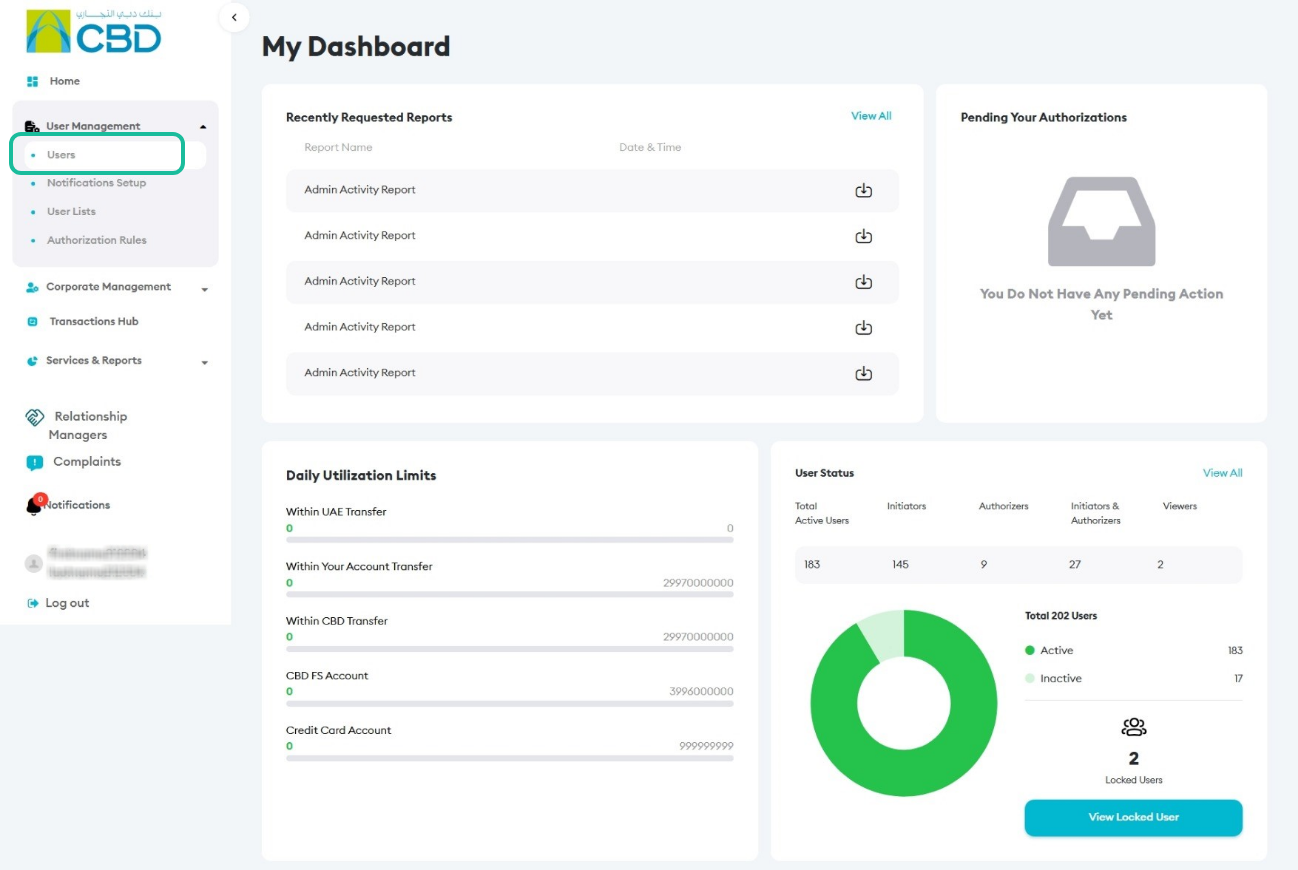
- Log in to iBusiness using your administrator credentials.
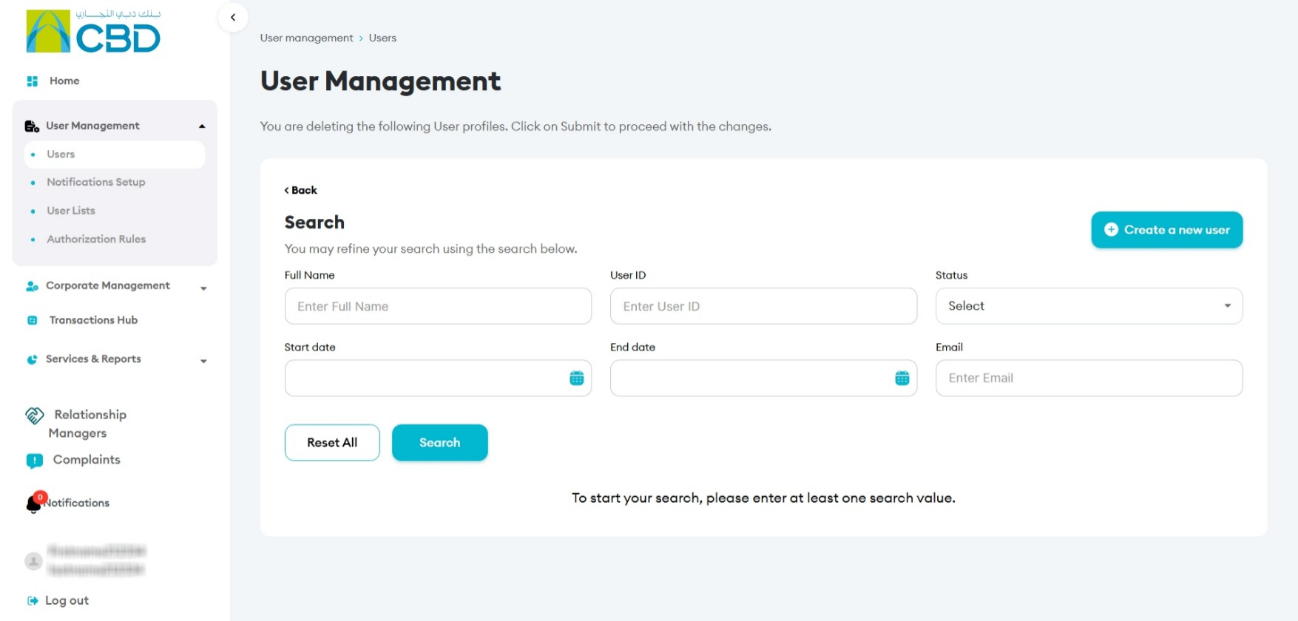
- Navigate to User Management > Users.
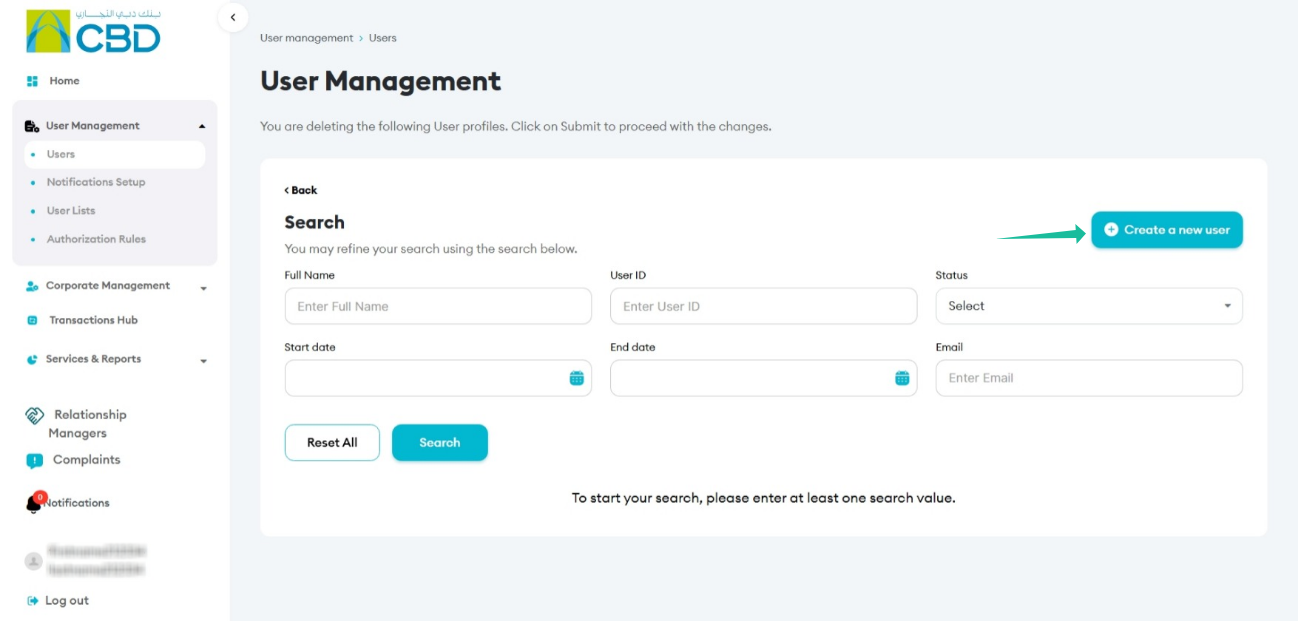
- Click Create a New User.
Step 2: Enter User Profile Information
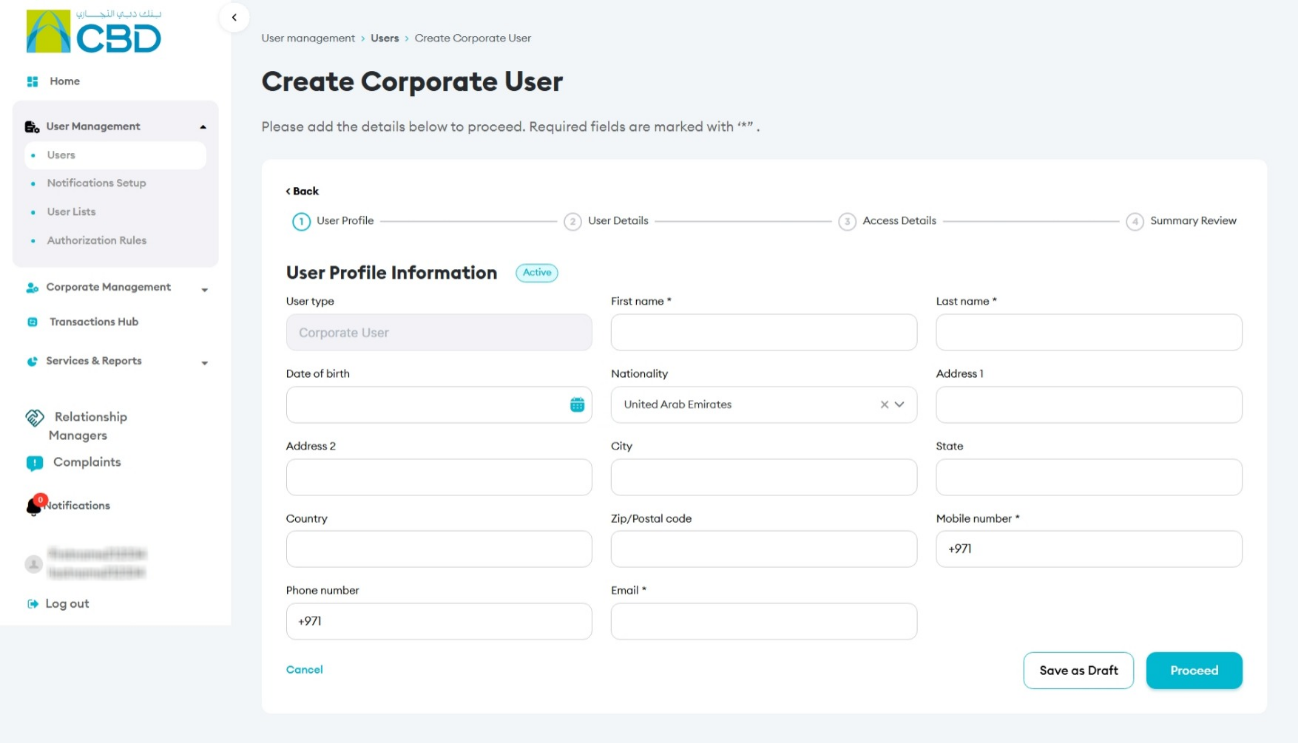
- Click Create a New User to begin.
- Complete all mandatory fields (marked with an asterisk *).
- Click Proceed to continue.
Step 3: Enter User Details
Fill in the required user details:
- Preferred User ID
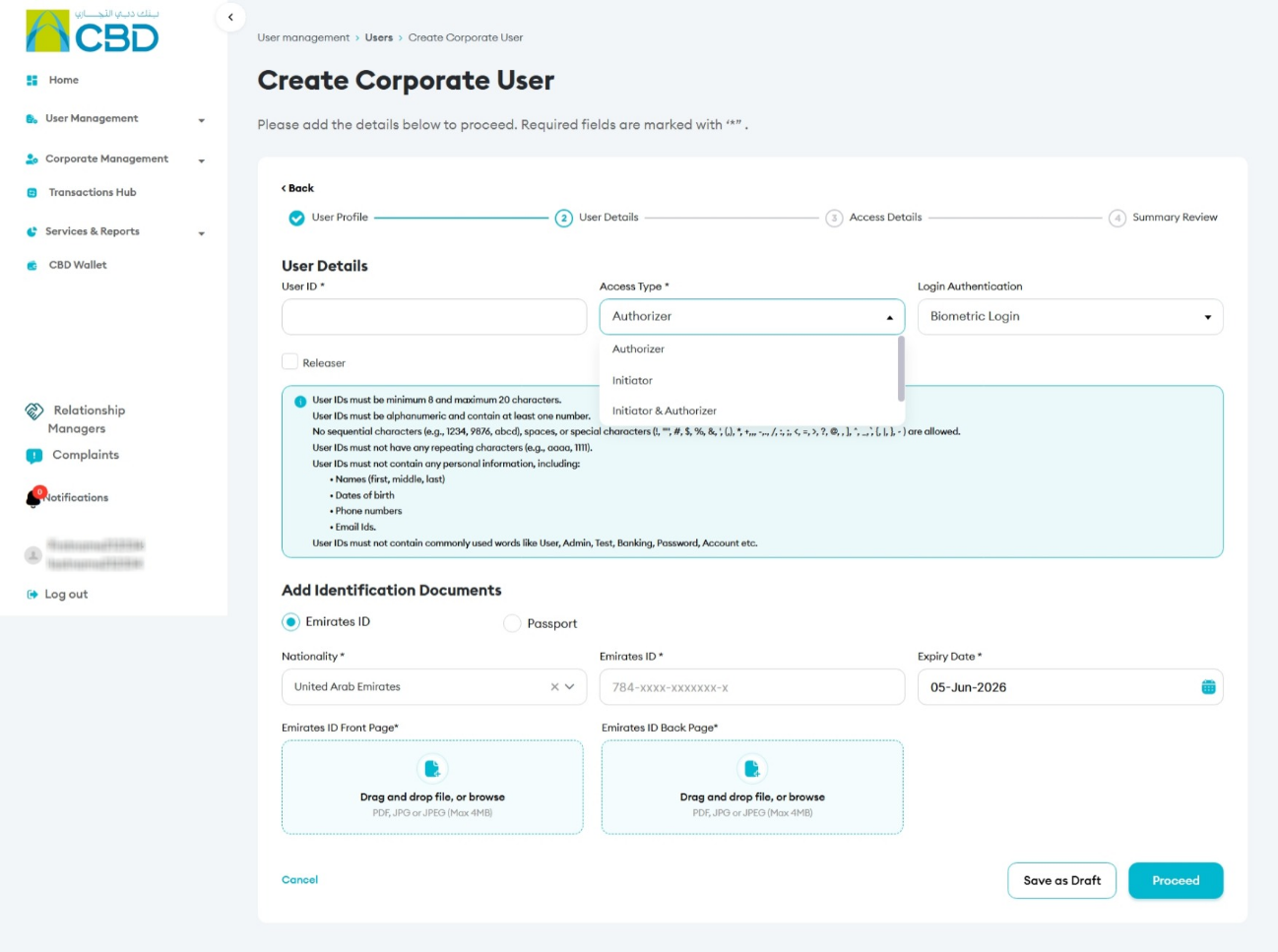
- Access Type:
- Initiator
- Authorizer
- Initiator & Authorizer
- Viewer
Authentication method
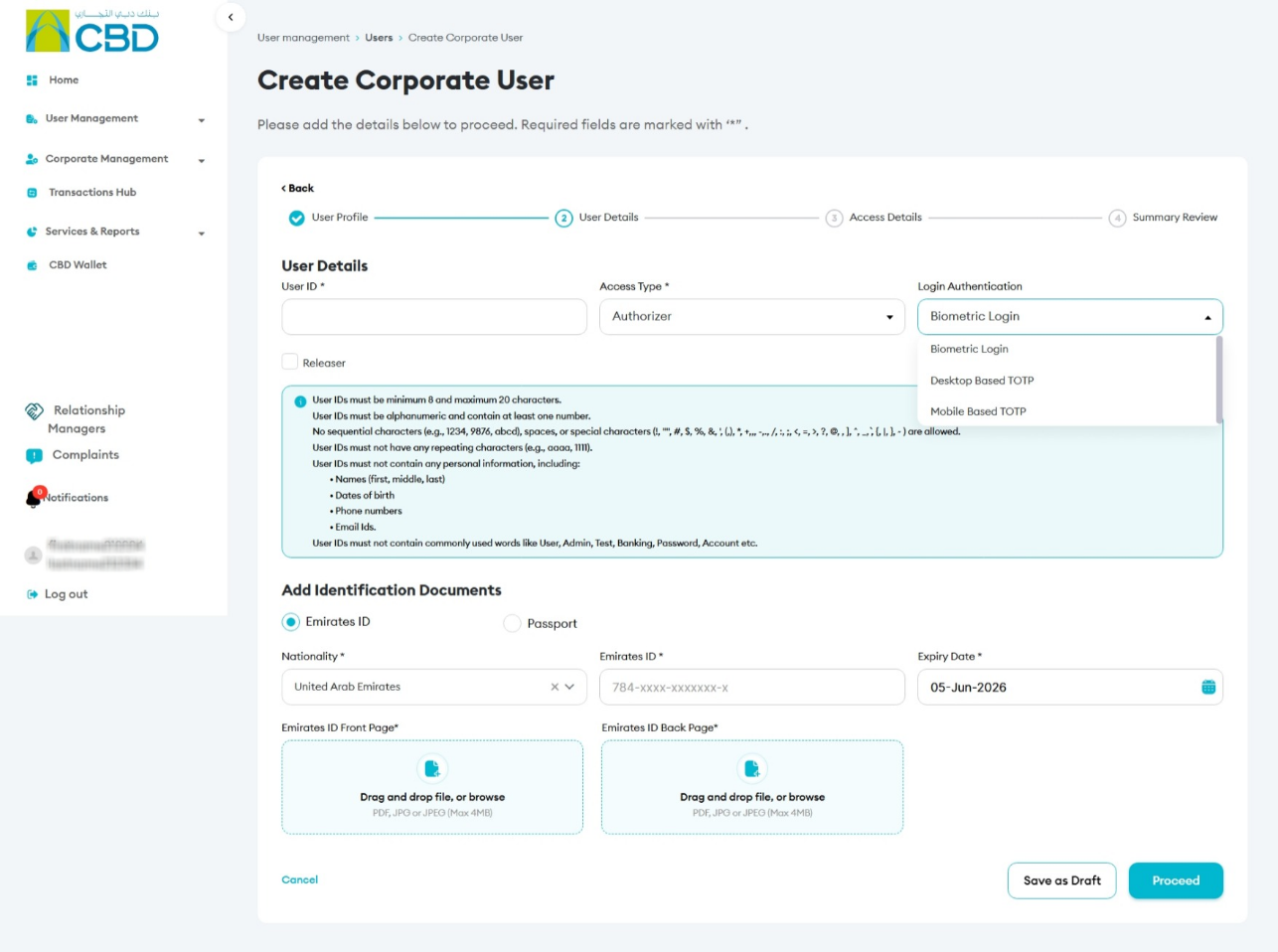
- Biometric login (Default)
- Mobile based TOTP
- Desktop based TOTP
For Authorizer or Initiator & Authorizer roles:
- Provide required identification documents
- Enter all relevant verification details
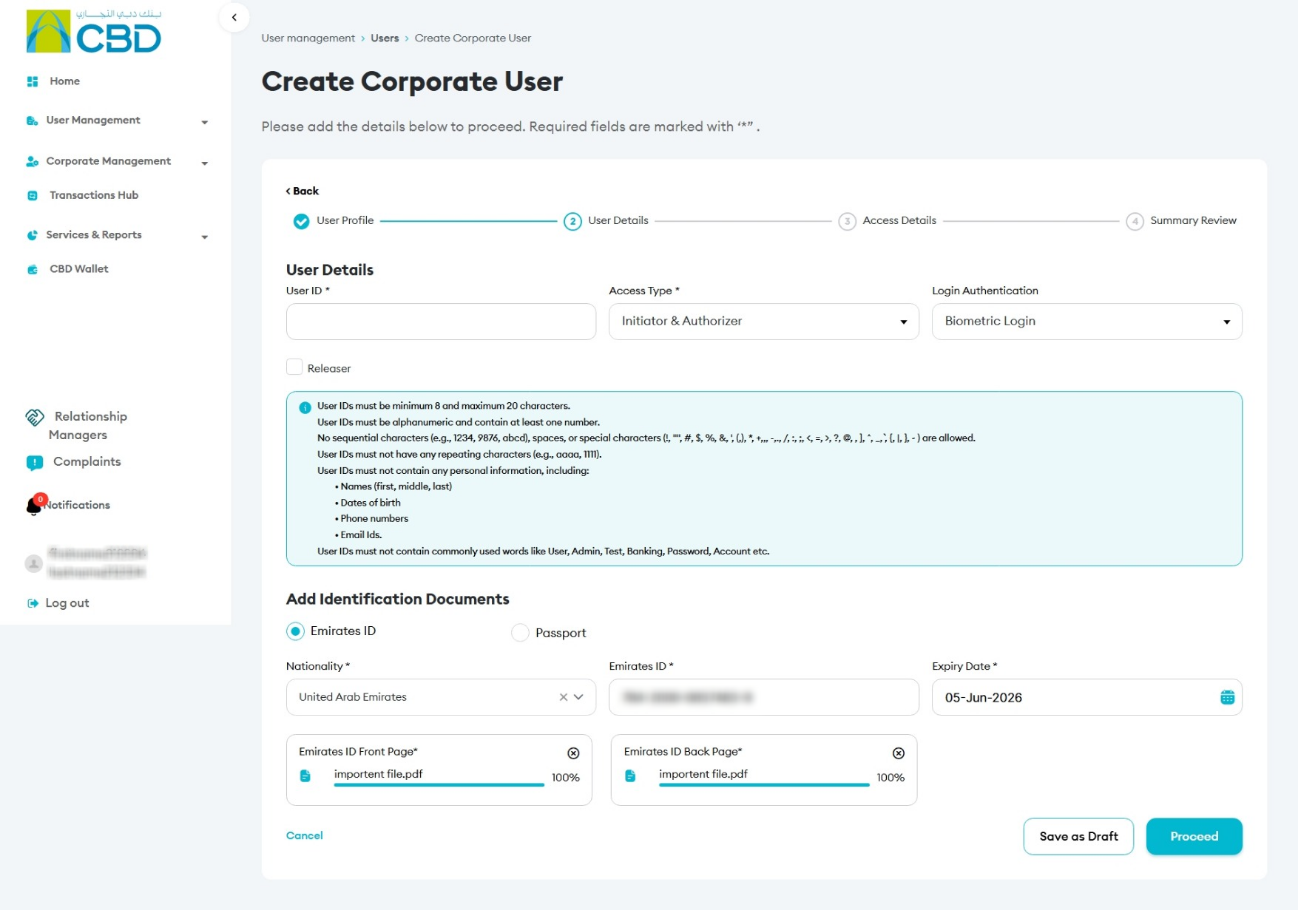
Click Proceed after completing the information.
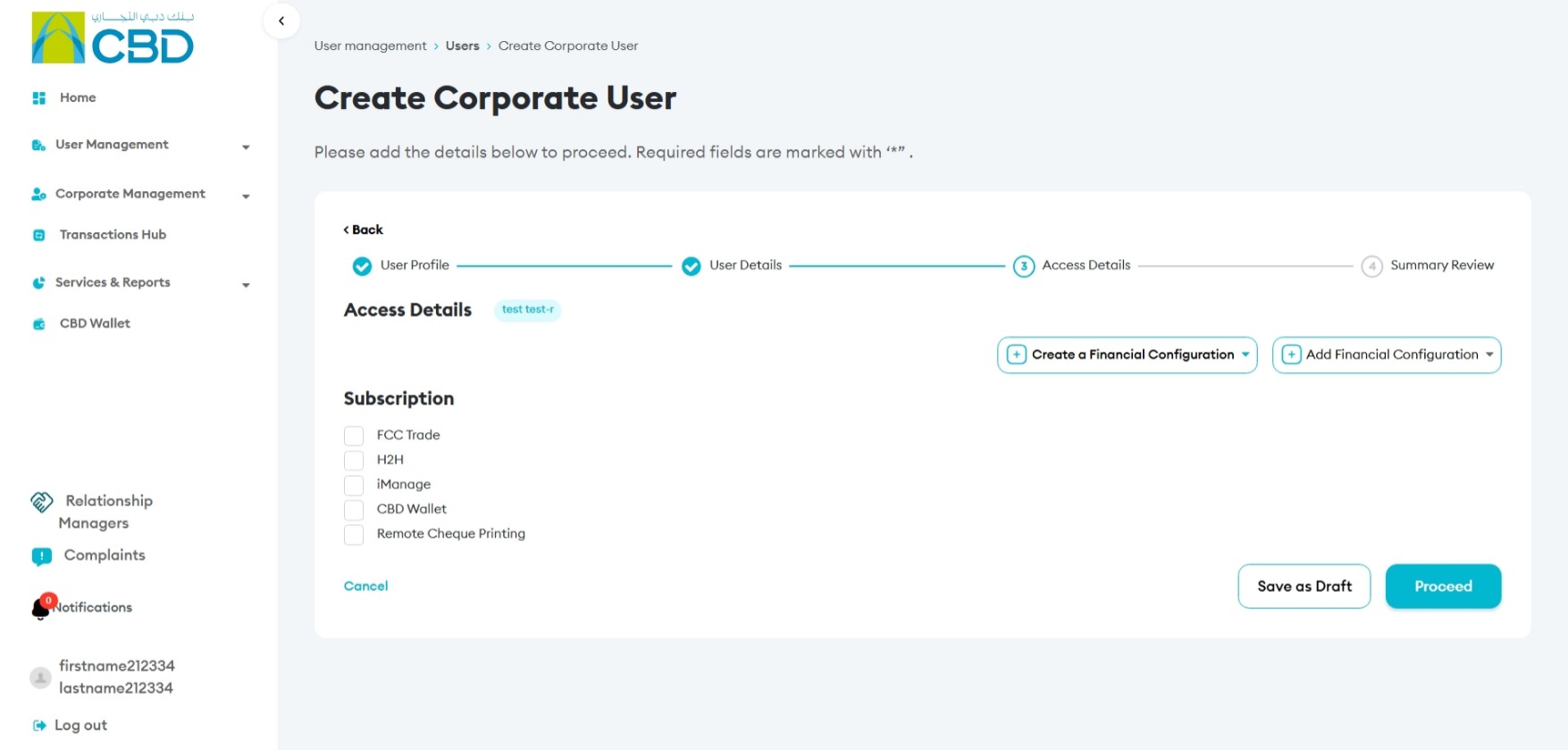
Step 4: Configure Access Details
- Click Add Financial Configurations.
- Assign the appropriate financial permissions and limits based on the user’s role.
- Click Proceed.
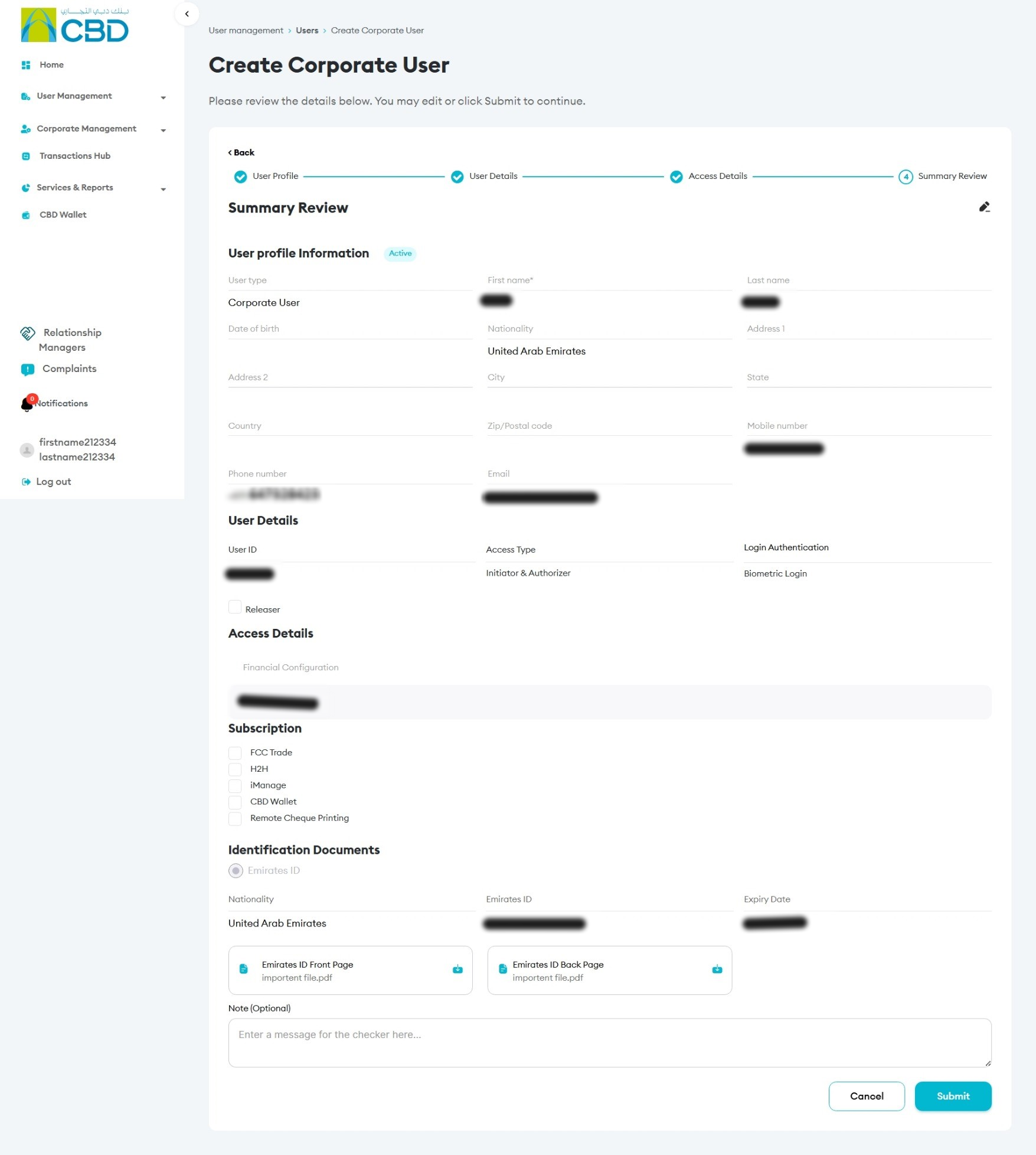
Step 5: Review and Submit
- Review all entered details carefully.
- Ensure accuracy across:
- Profile information
- Access type
- Financial configuration
- Click Submit to proceed.
Step 6: Authenticate the Request
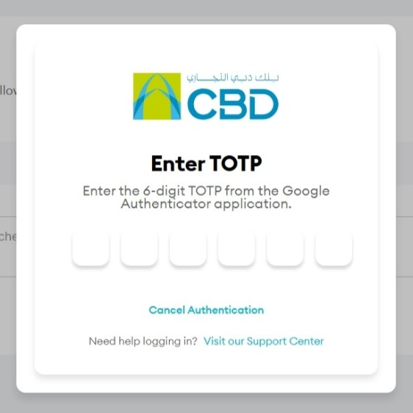
After submission, authentication is required to complete the request.
Available Authentication Options
- Mobile App Authentication
- A notification is sent to the registered iBusiness mobile app.
- Approve the request using biometric or device authentication.
- Google Authenticator
- Enter the one-time passcode (OTP) generated from Google Authenticator.
Result:
- A confirmation screen will appear with a reference number.
Step 7: Approval (Checker/Authorizer)
- The request will be routed to the Approver (Checker).
- The Approver must:
- Log in to iBusiness
- Navigate to Transactions > Pending Your Authorizations
- Locate the request under Create User
- Review the request details and choose:
- Approve – to proceed with user creation
- Reject – to decline the request (with comments)
Helpful tips
- Always verify user details before submission.
- Ensure the correct Access Type and authentication method are selected.
- Confirm that all required documents are provided for authorization roles.
- Track the reference number for audit and troubleshooting.