
For View Access Package, please submit the iBusiness Amendment Form (Transaction Banking - Amendment Form) and fill it out as shown:
In Section 2, tick the Modules which are required to be added to your Profile. Accordingly, fill out the required details on the respective Product/Service Section.

The form needs to be signed by the authorized signatory & marked with the company stamp. To be submitted either to your respective Relationship Manager or to Service Support Desk, Ground Floor, CBD Head Office.
If you have a Transaction Package, you may follow the steps below to raise the Update Package Request through iBusiness.
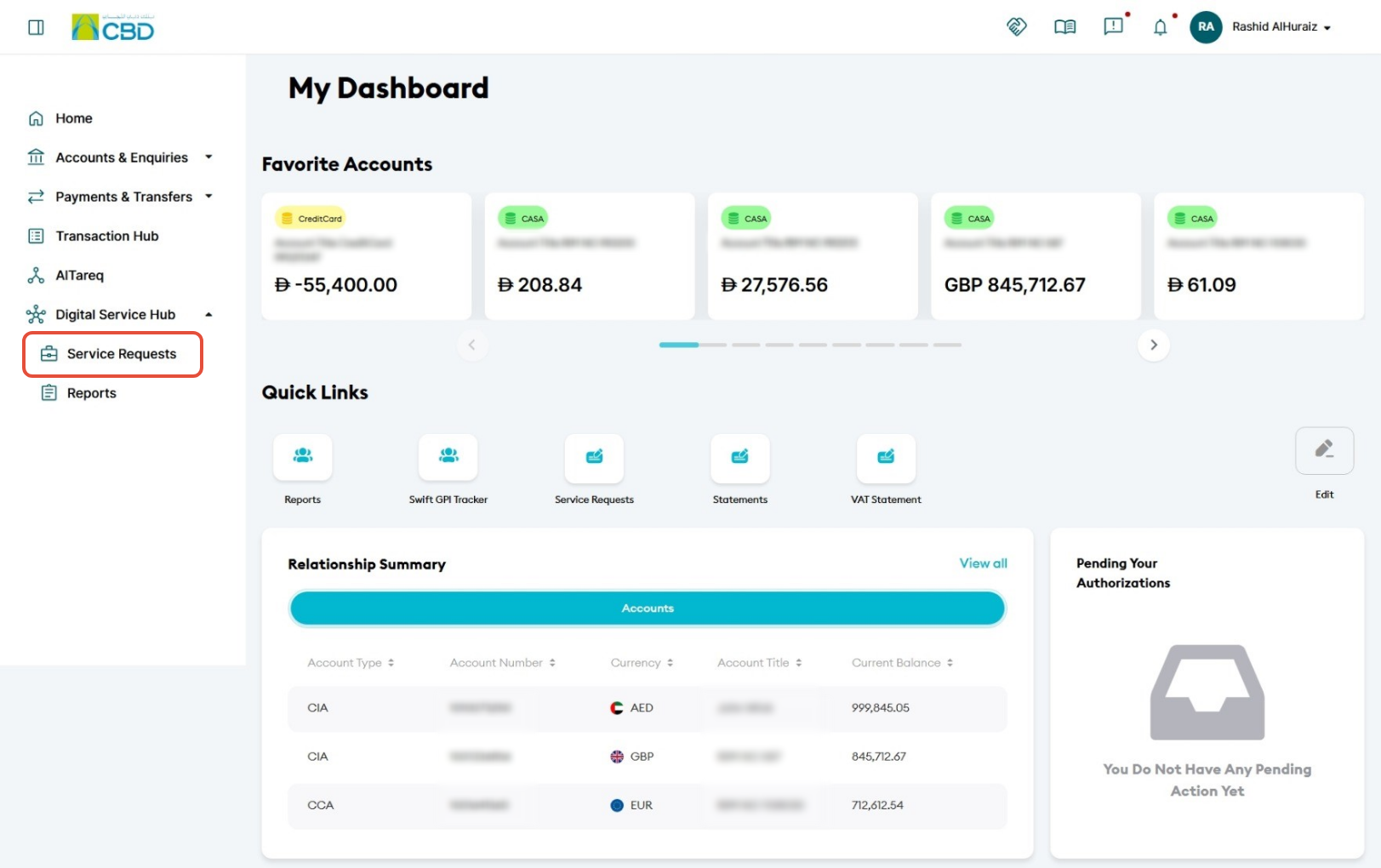
Step 1: Log in to iBusiness using your user and go to Digital Service Hub ➜ Service Requests.
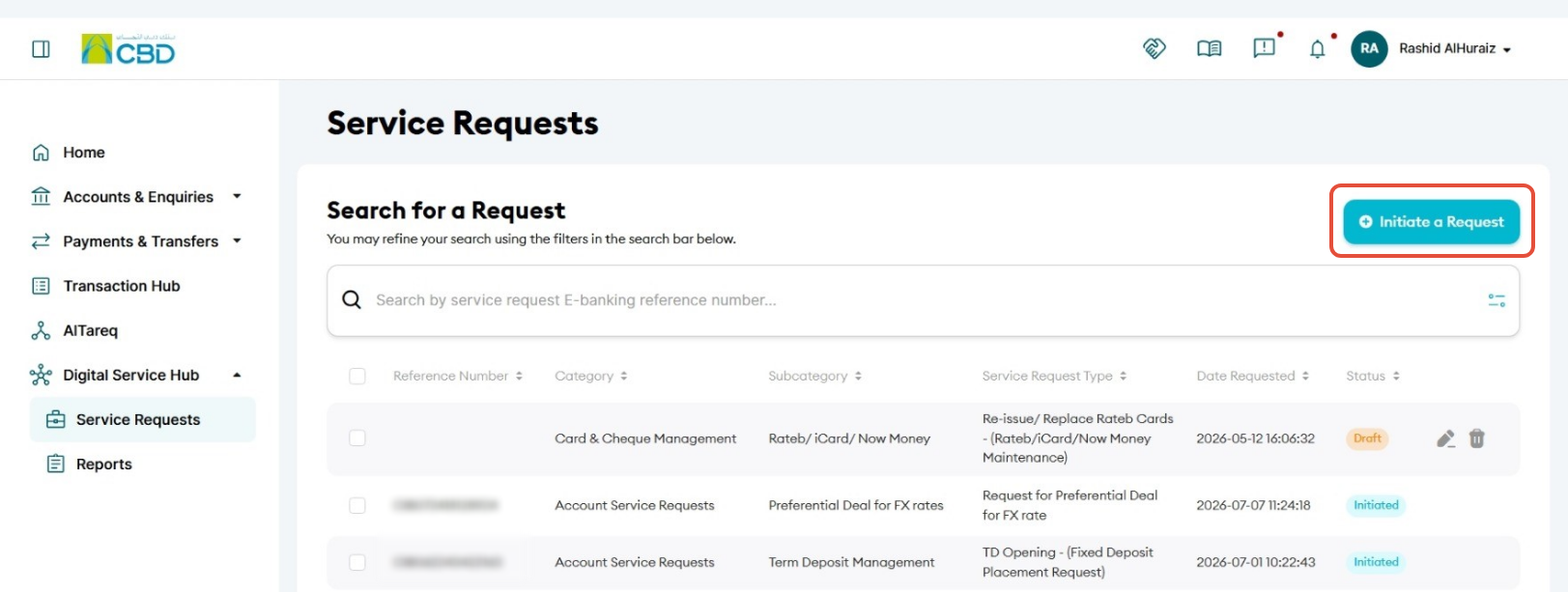
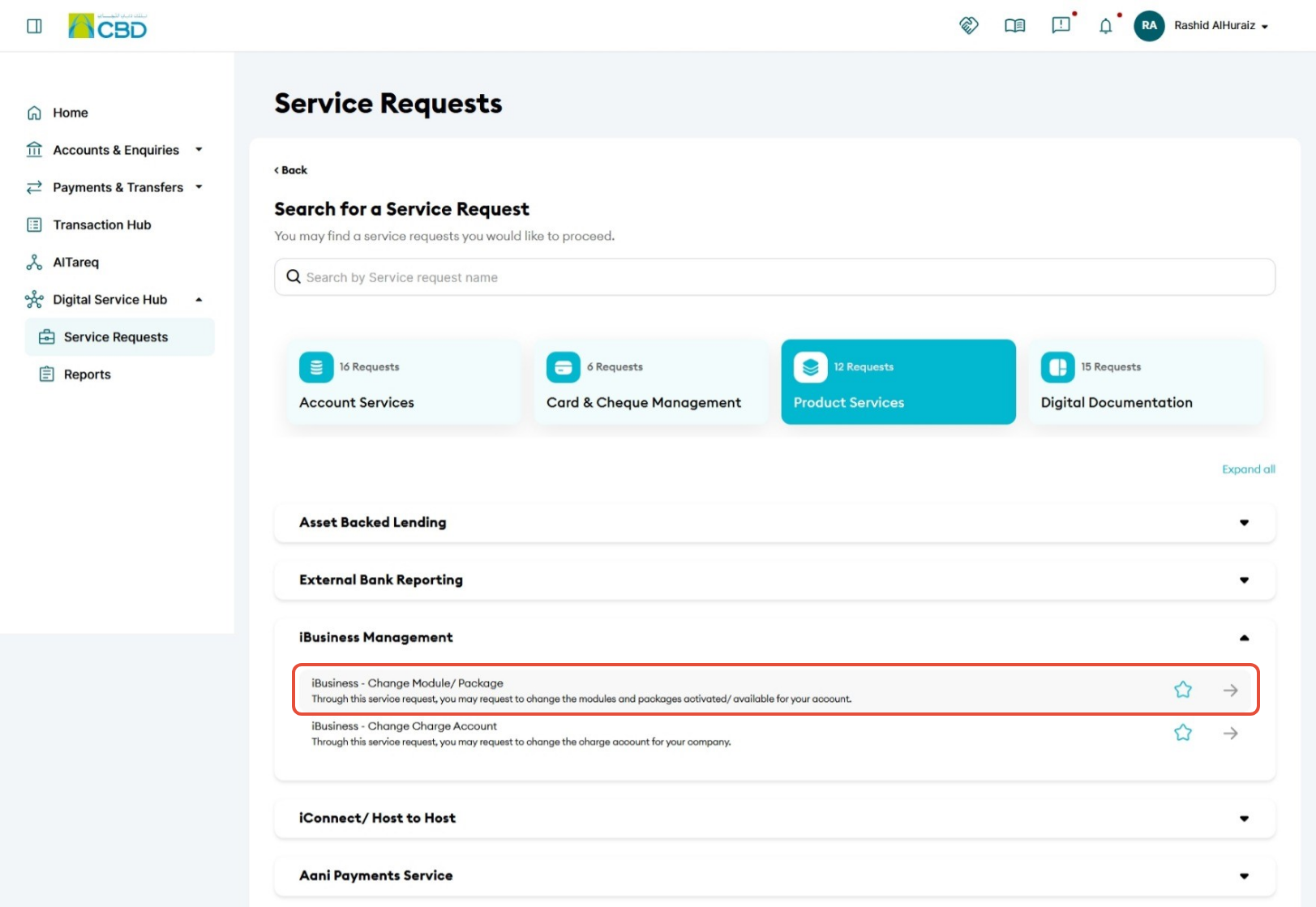
- Select Initiate a Request ➜ Product Services ➜ Select iBusiness Management ➜ Select iBusiness- Change Module/Package
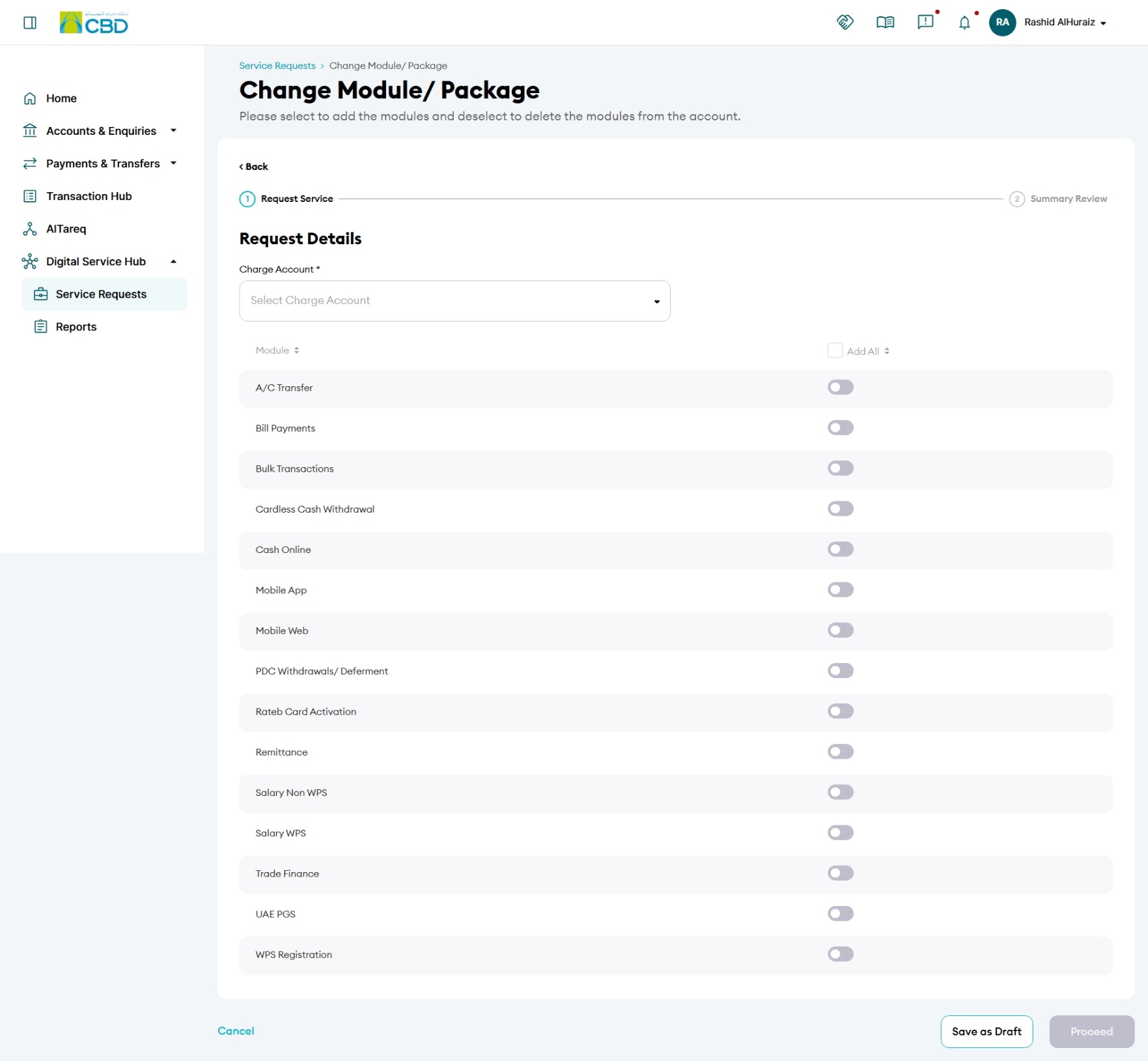
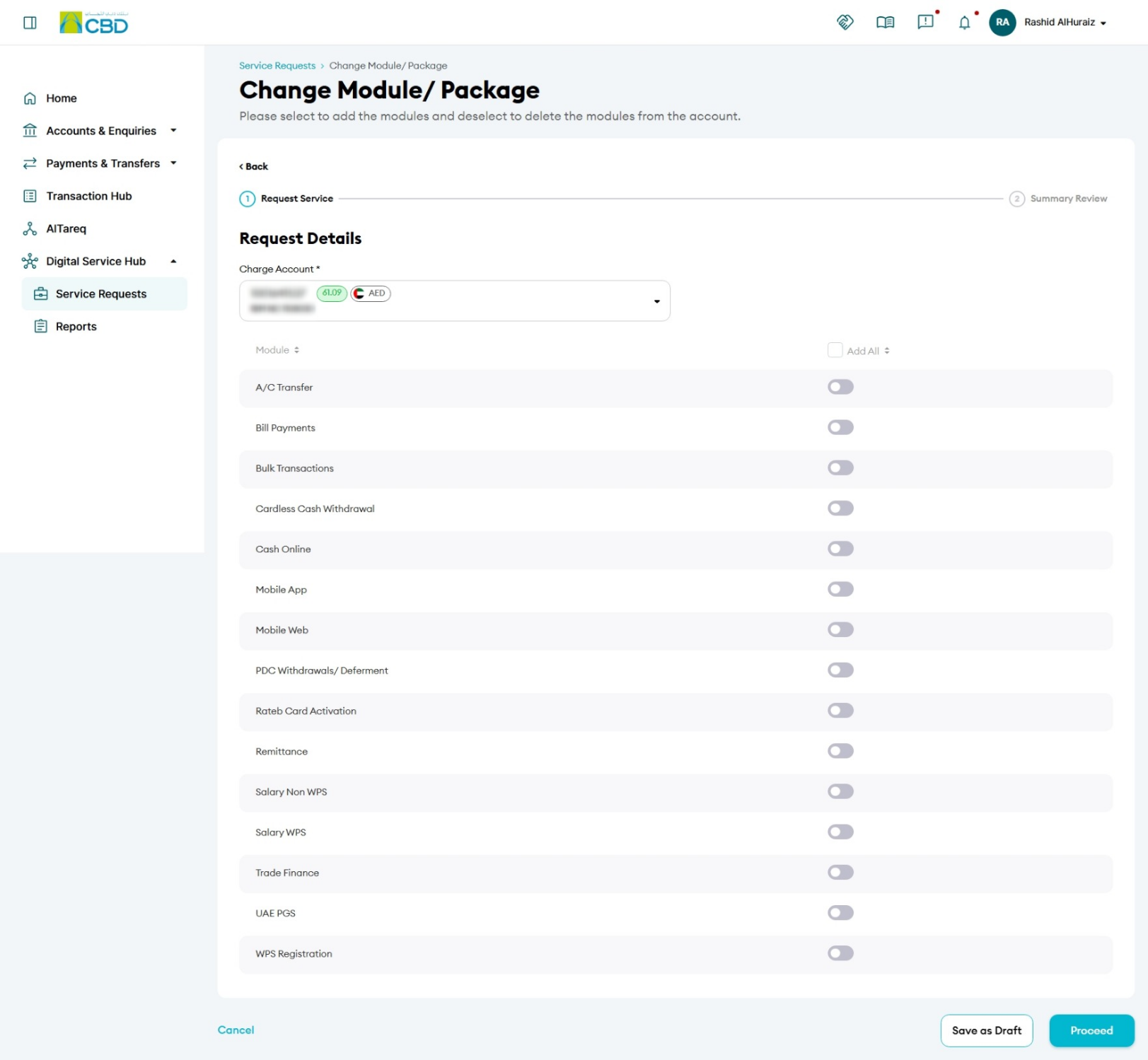
Step 2: User will be redirected to the Change Module/ Package landing screen.
- Select Charge Account
- Select the Modules to be added to the Account
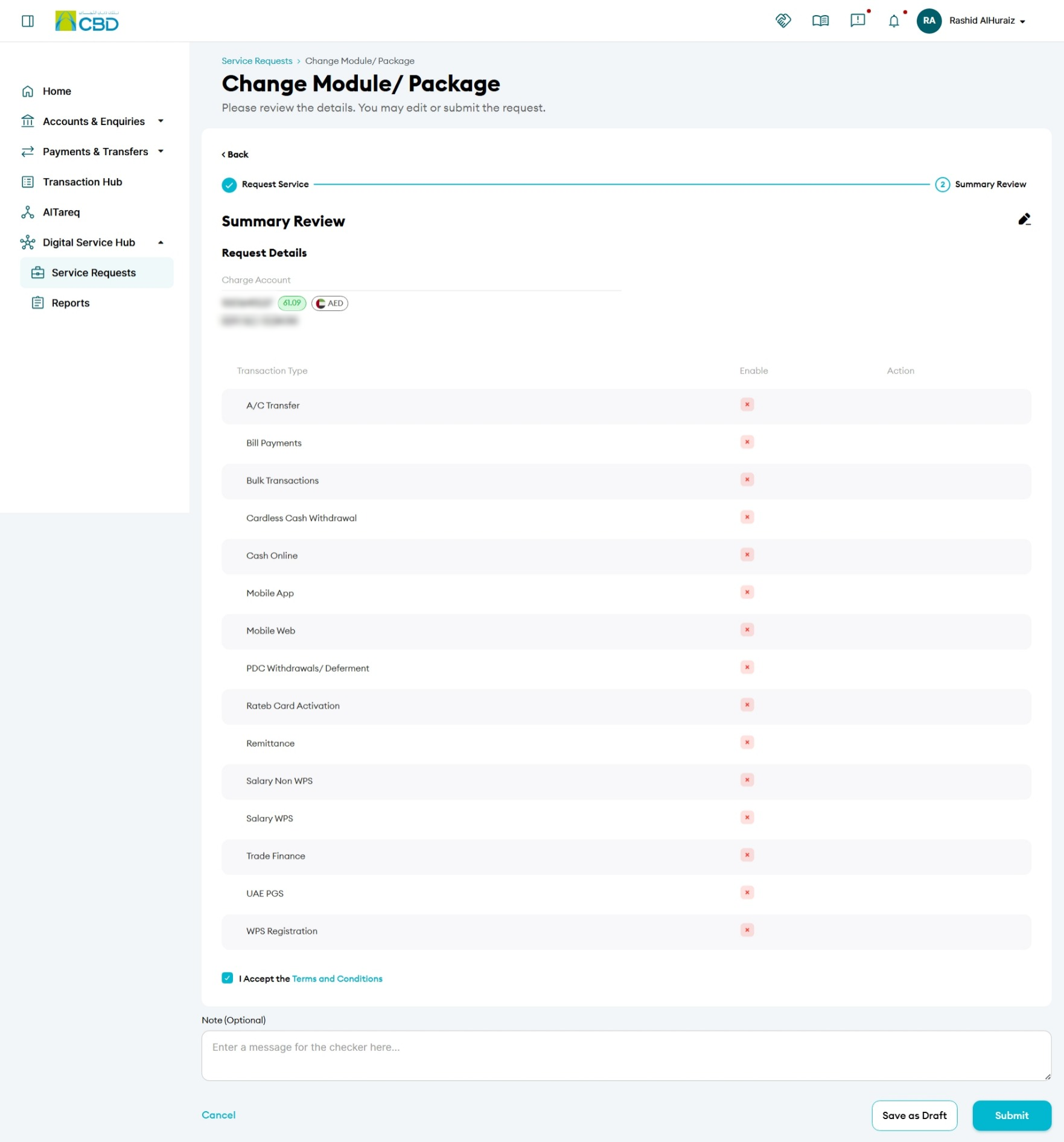
Step 3: Summary Review
- Accept the Terms and Conditions
- Before clicking the “Submit” button the user can choose to either Save as Draft or Cancel
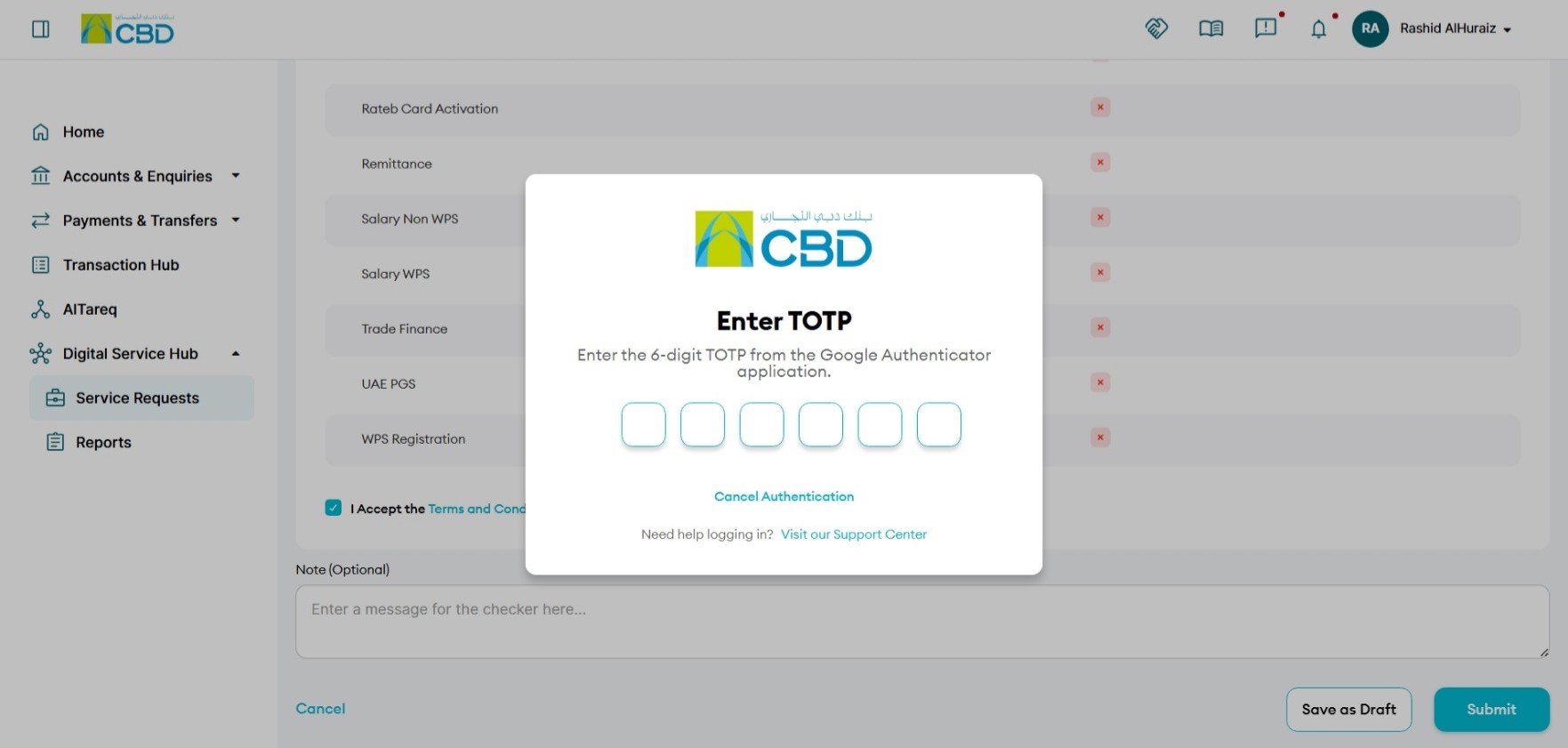
Step 5: Authenticate the Request
Complete authentication using one of the following methods:
Mobile App Authentication
- Approve the request via the iBusiness mobile app notification
- Use biometric or device verification
Google Authenticator
- Enter the One-Time Password (OTP) generated from the app
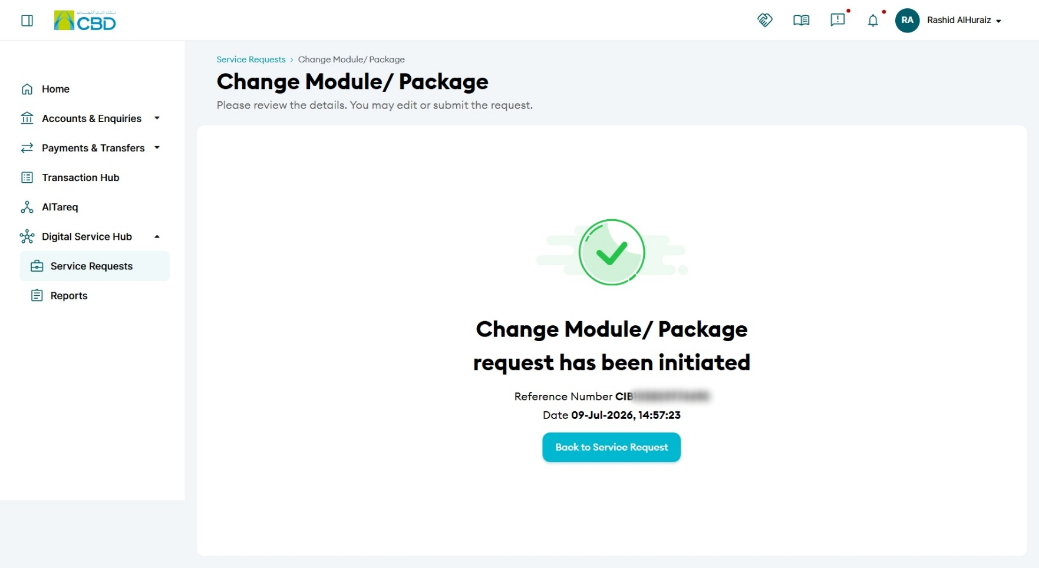
Once authenticated successfully, a confirmation screen with a reference number will be generated.
Note: If you have a "Maker-Checker Setup" for Users, please ensure that the Approvers authorizes the request.
Monitor the request under Queue, and once it is marked as Completed, follow these steps to assign the new package to the users:
- How to Modify User Roles?
- Modifying User's Account Setup
- How to Check/Modify Your Existing Authorization Workflow?
Checker Actions:
- Post Initiating the request, it will move to the Checker’s queue for action.
- The Approver should log in to iBusiness and click on the Transactions Tab and go to Pending your Authorizations
- The Pending items for the action will be available under transaction type Service Requests
- Approver can review the details of the request/documents uploaded, and
act (Approve/Reject) on the request initiated