
Use this guide to subscribe, update, or unsubscribe from SMS notifications for your accounts or cards in Next Gen CIB.
Step 1: Access SMS service request
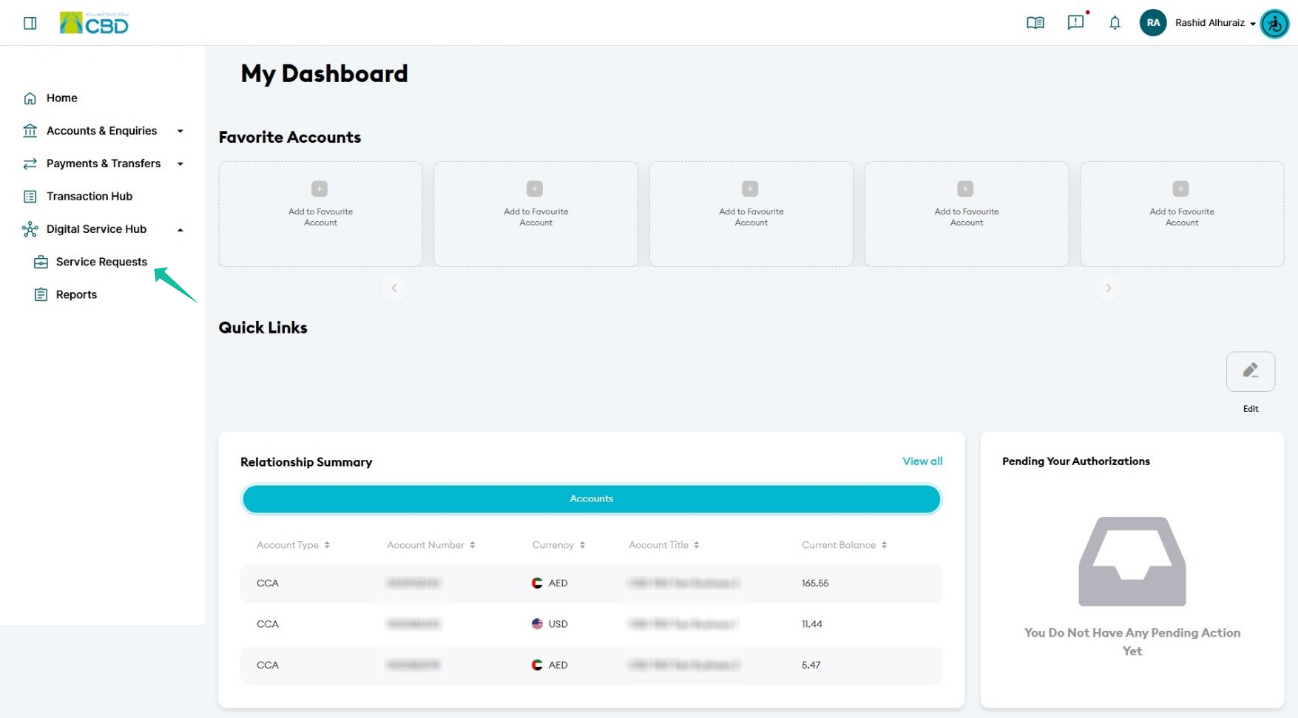
- Log in to iBusiness
- Navigate to:
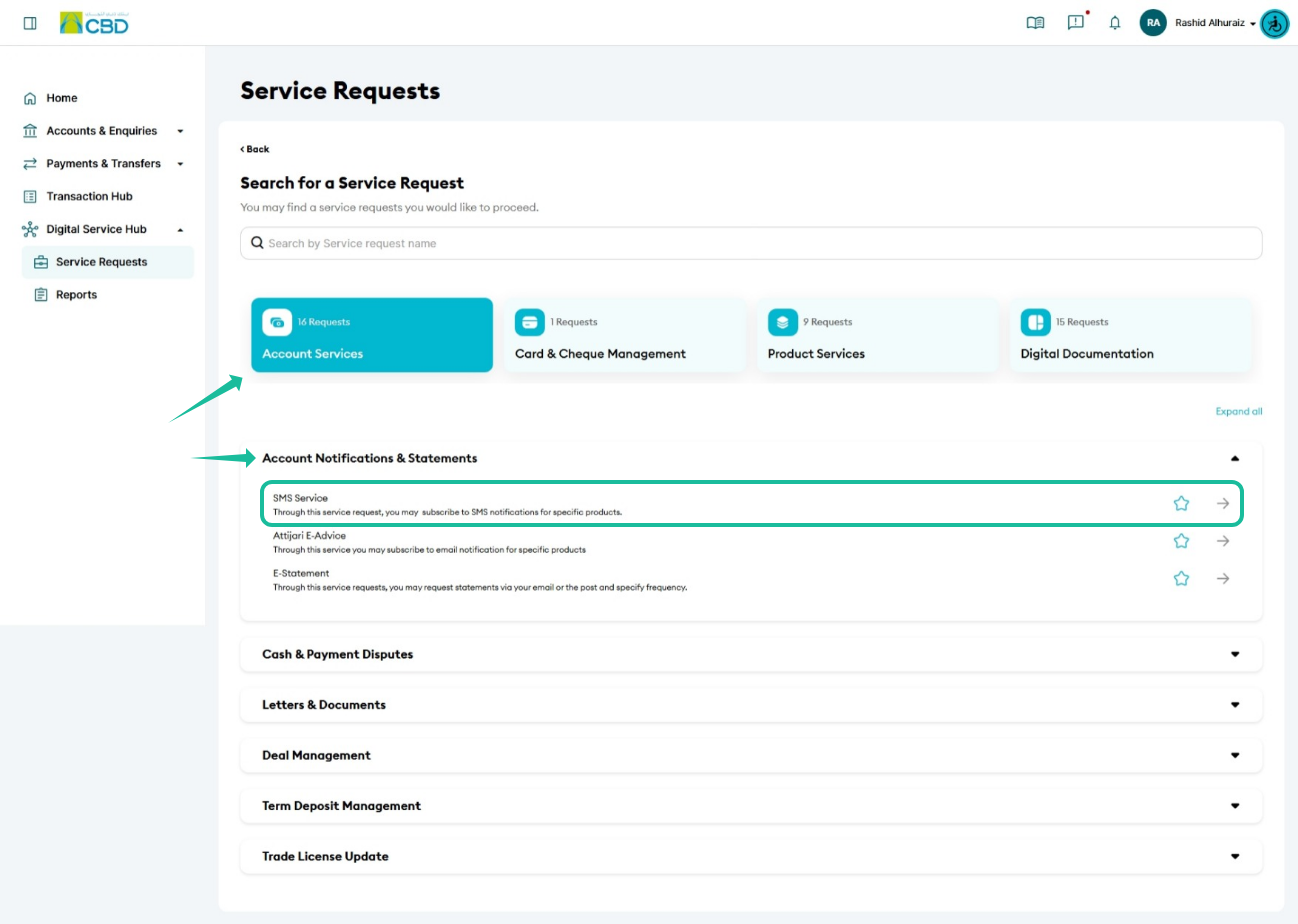
Digital Service Hub > Services & Reports - Select:
Account Notifications & Statements - Choose:
SMS Service Request
Step 2: Enter subscription details
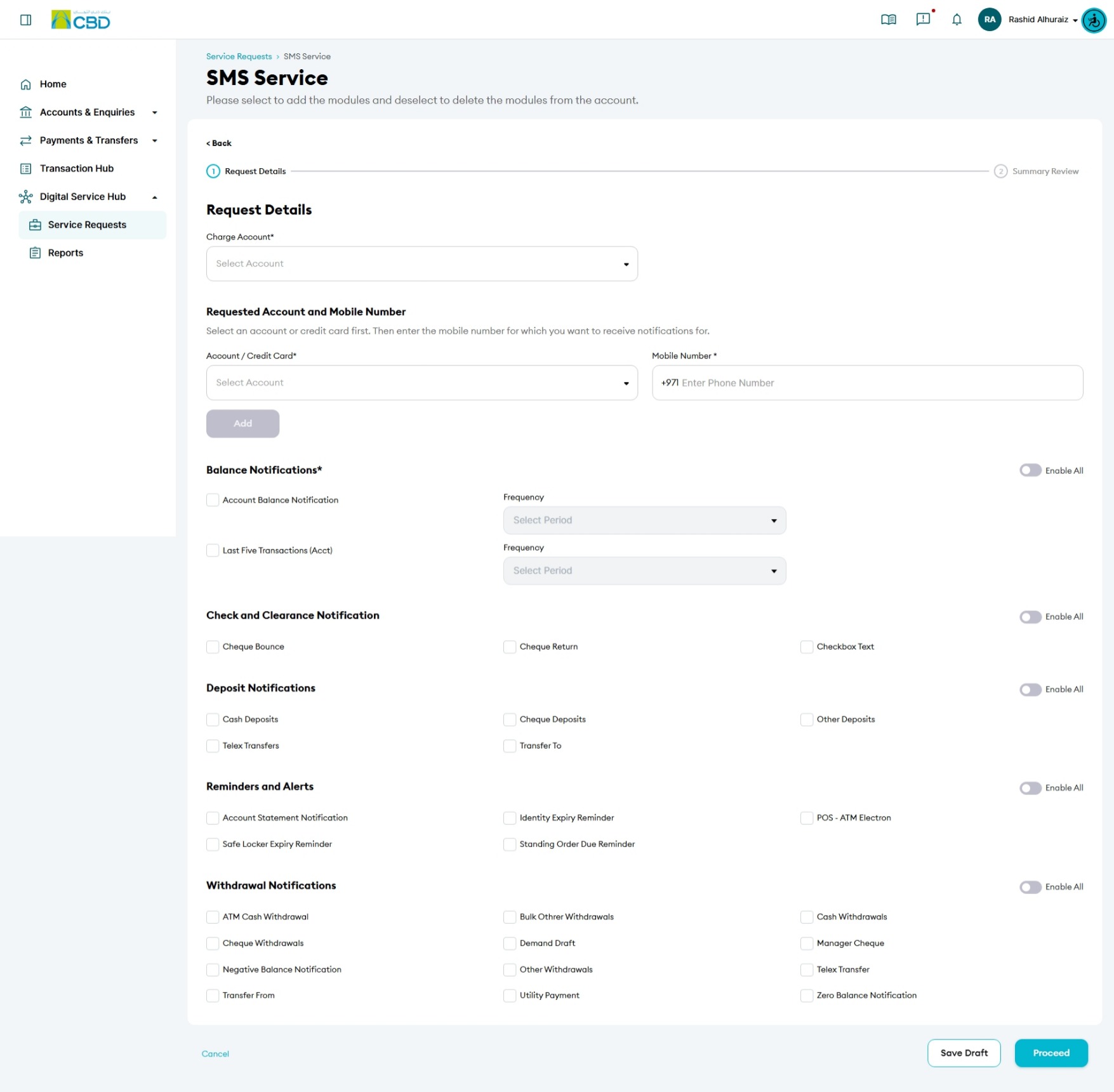
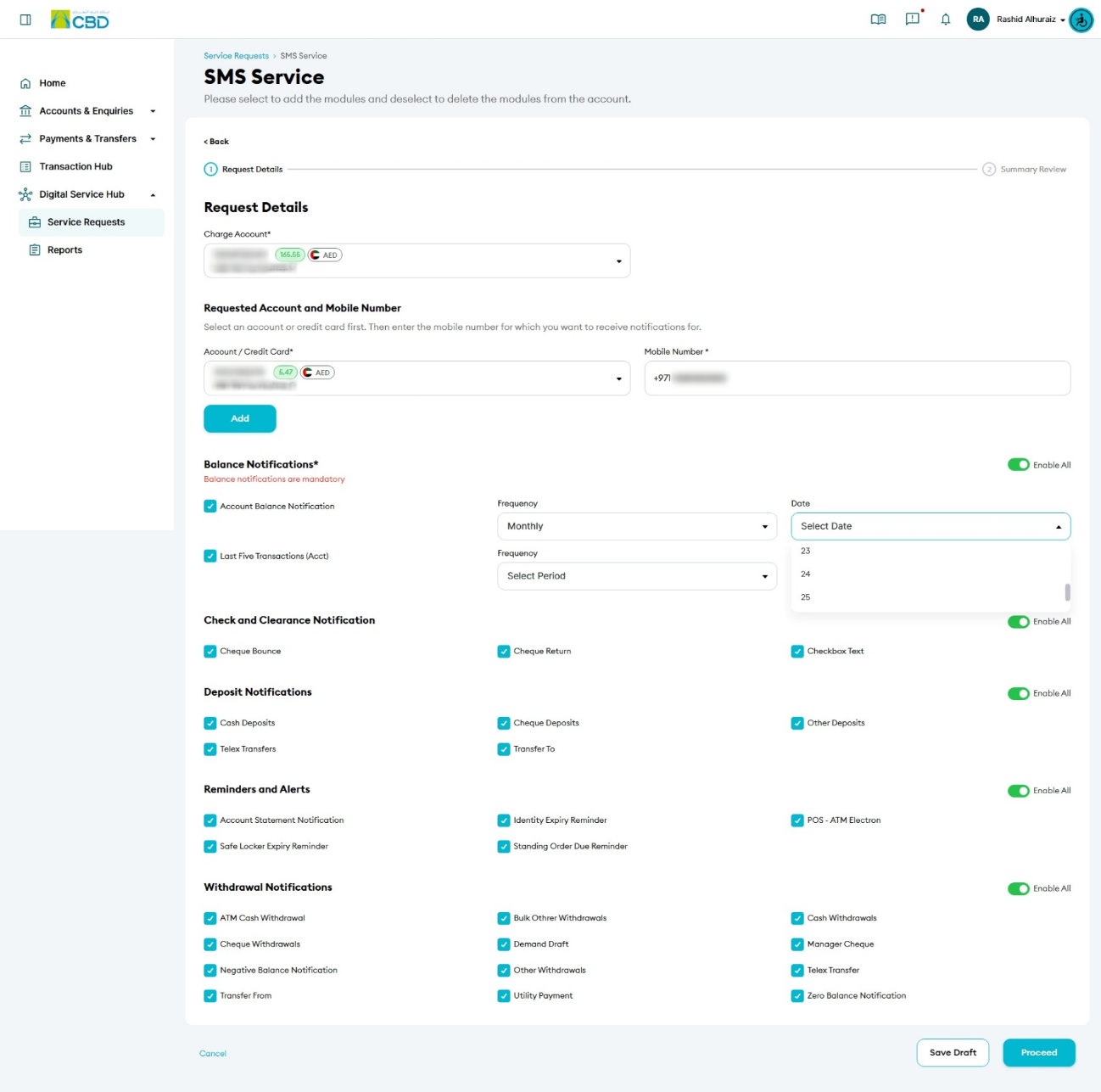
- Select the Charge Account Number
- Select the Account or Credit Card
- Enter the mobile number to receive notifications
- Click Add
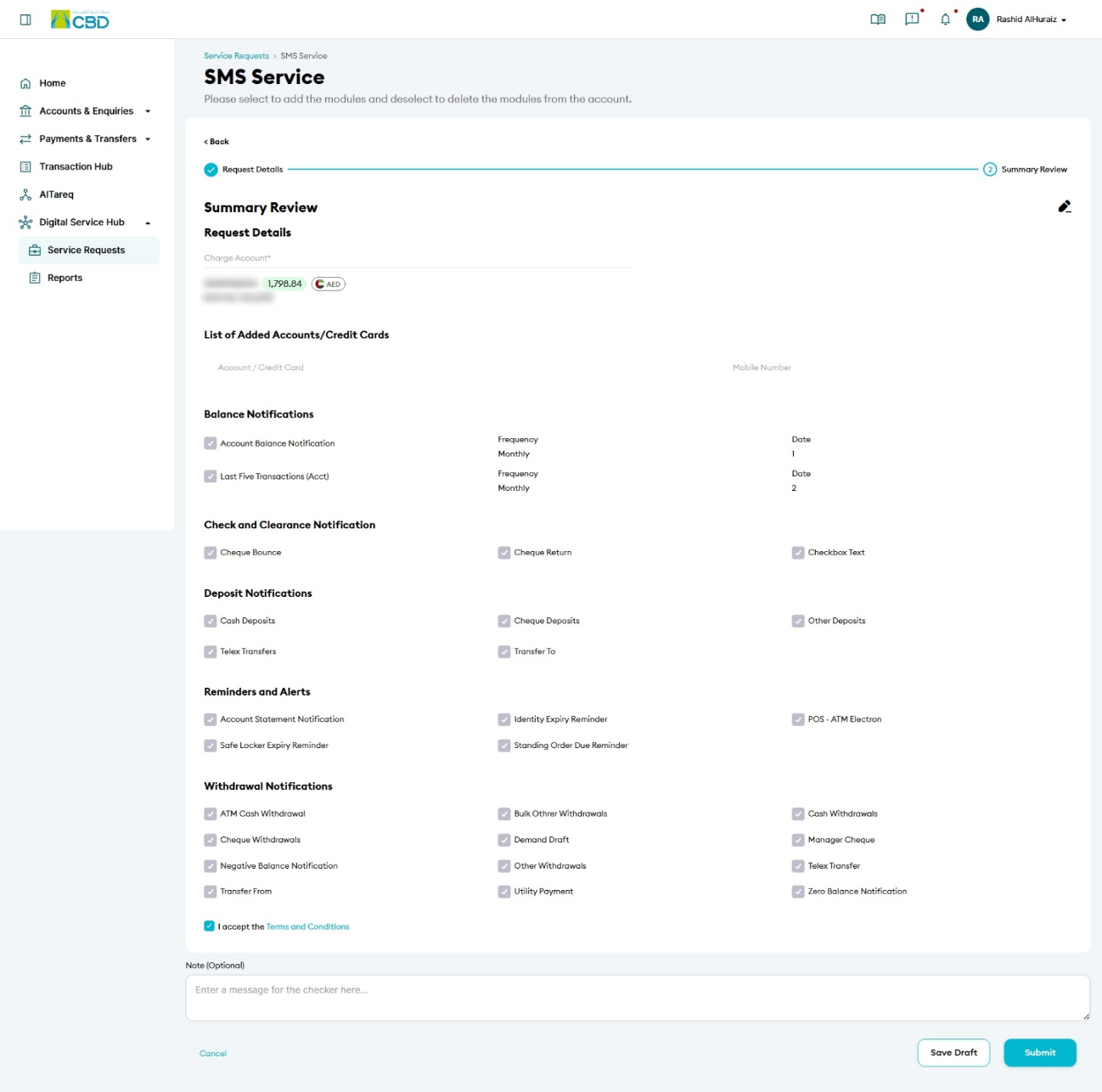
Step 3: Select notification preferences
Choose the SMS notification types you want to receive:
- Balance notifications
- Cheque and clearing notifications
- Deposit notifications
- Reminders and alerts
- Withdrawal notifications
- To modify an existing subscription:
- Select the relevant account/card and update details
- To add a new mobile number:
- Enter the number and click Add

Step 4: Submit the request
- Review your selections
- Accept the Terms & Conditions
- Click Submit
Step 5: Authenticate the request
- You will receive a notification on your paired mobile device
- Approve the request to proceed
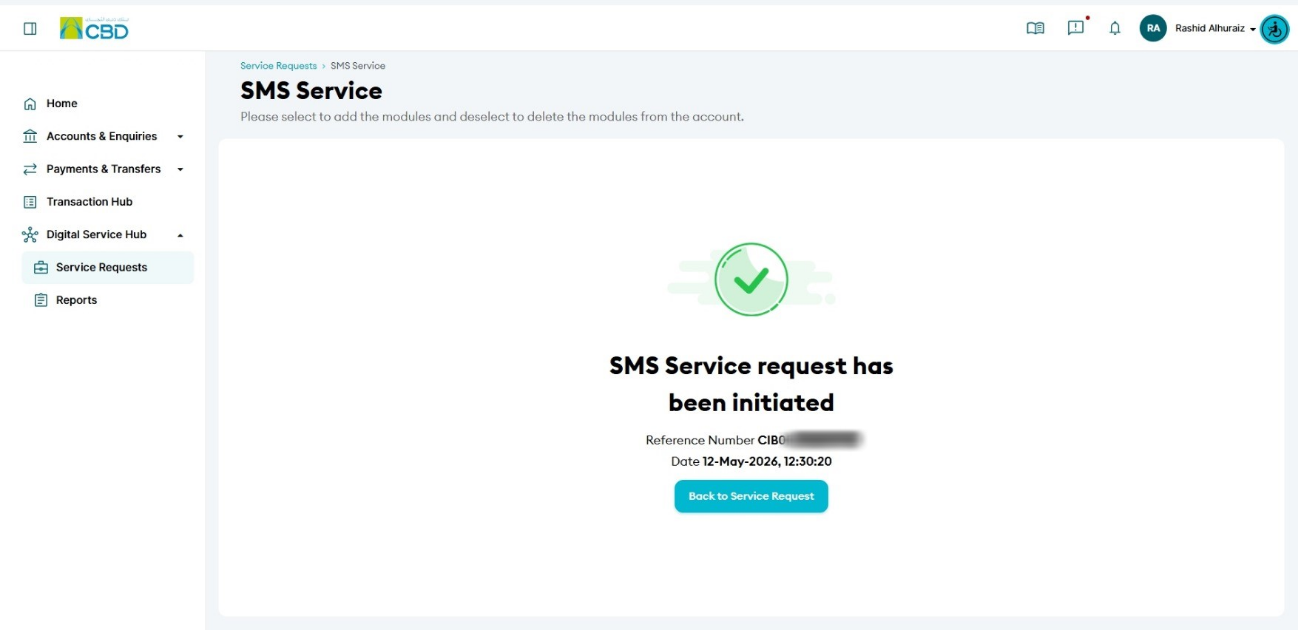
- A confirmation screen with a reference number will be displayed
Step 6: Approval (if applicable)
- If your organisation follows a maker/checker process, the request must be approved
- The approver should:
- Log in to iBusiness
- Go to Transactions > Pending Your Authorisations
- Locate the request under Service Request
- Review and Approve or Reject the request
Helpful Tips
- Ensure the mobile number entered is correct to receive notifications
- Select only the relevant notification types to avoid unnecessary messages
- Update your subscription whenever your contact details change
- Keep the reference number to track your request status