
Overview
This guide provides step-by-step instructions for submitting a request to Stop a Remittance through the iBusiness Web Portal.
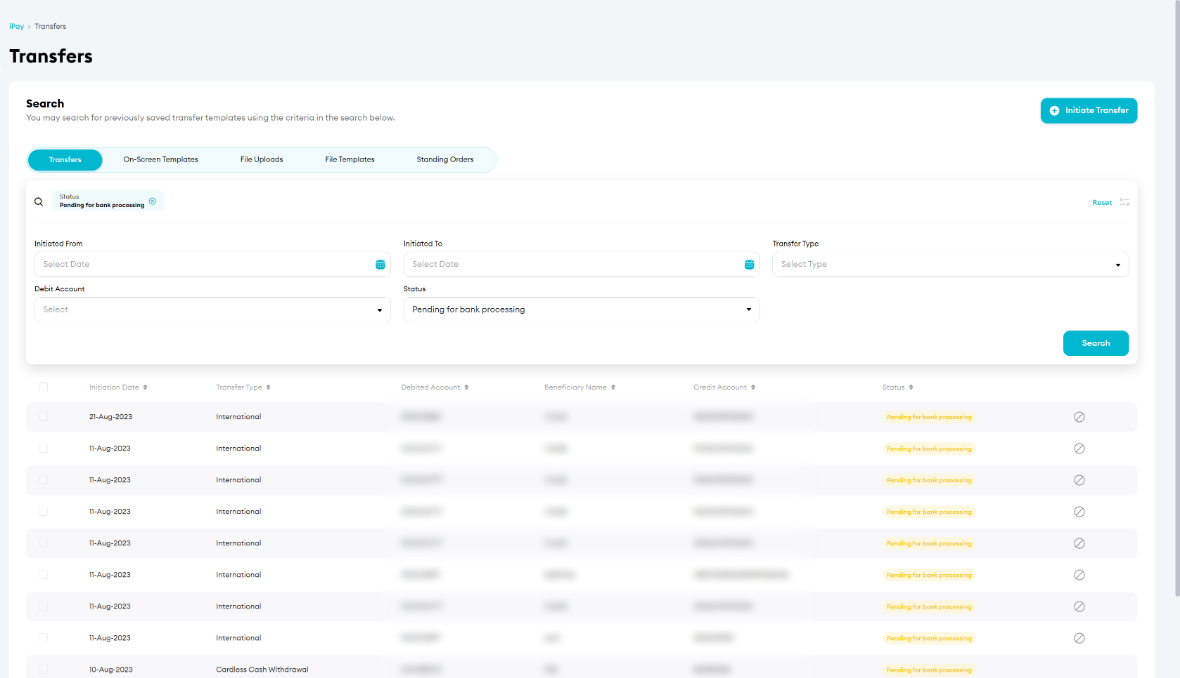
A remittance can only be stopped if it is still in Pending for Bank Processing status. Once the payment has been processed by the bank, the transaction may no longer be eligible for a stop request.
Step 1: Locate the Transfer
- Log in to iBusiness.
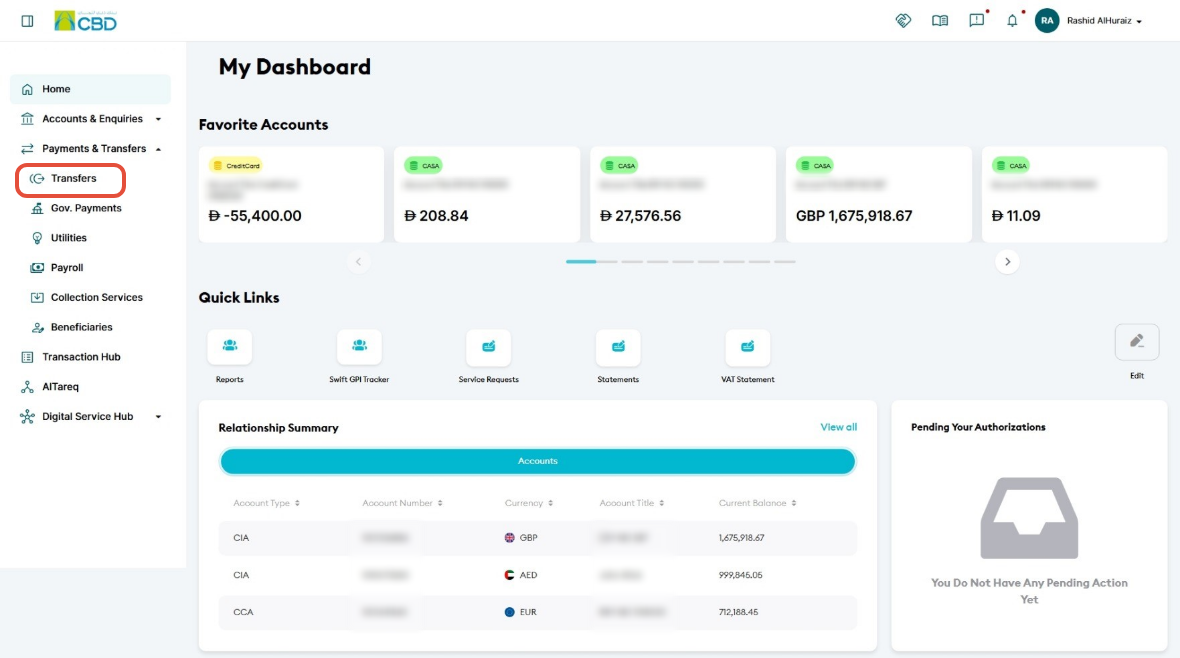
- Navigate to: Payment & Transfers ➜ Transfers
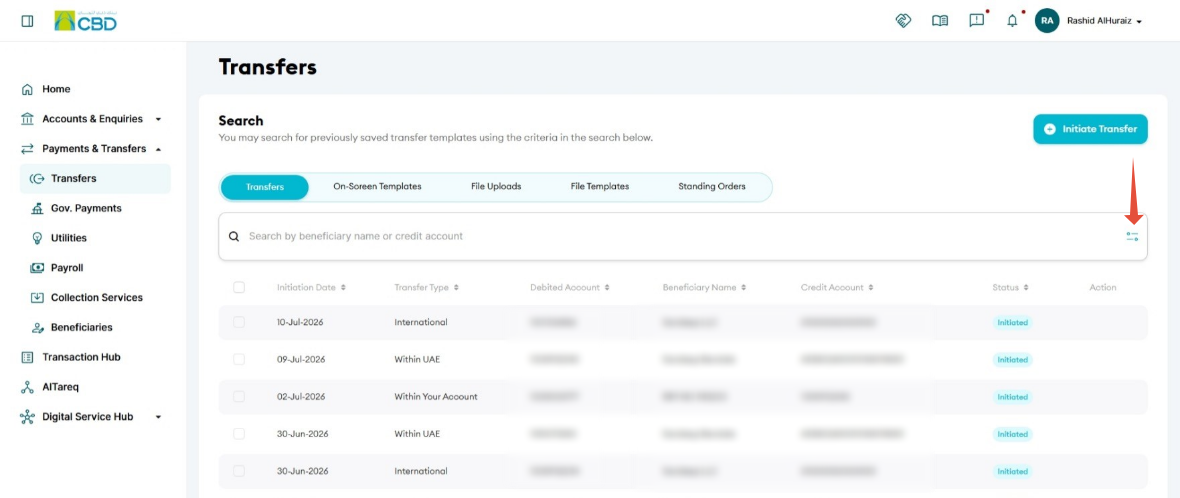
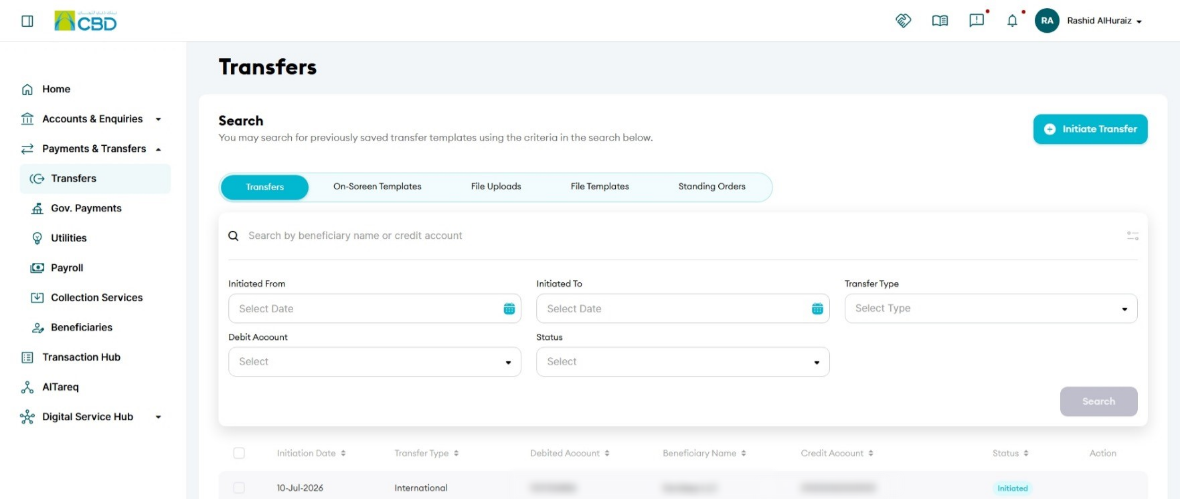
- Click the Search bar to open the Advanced Search options.
Step 2: Search for the Remittance
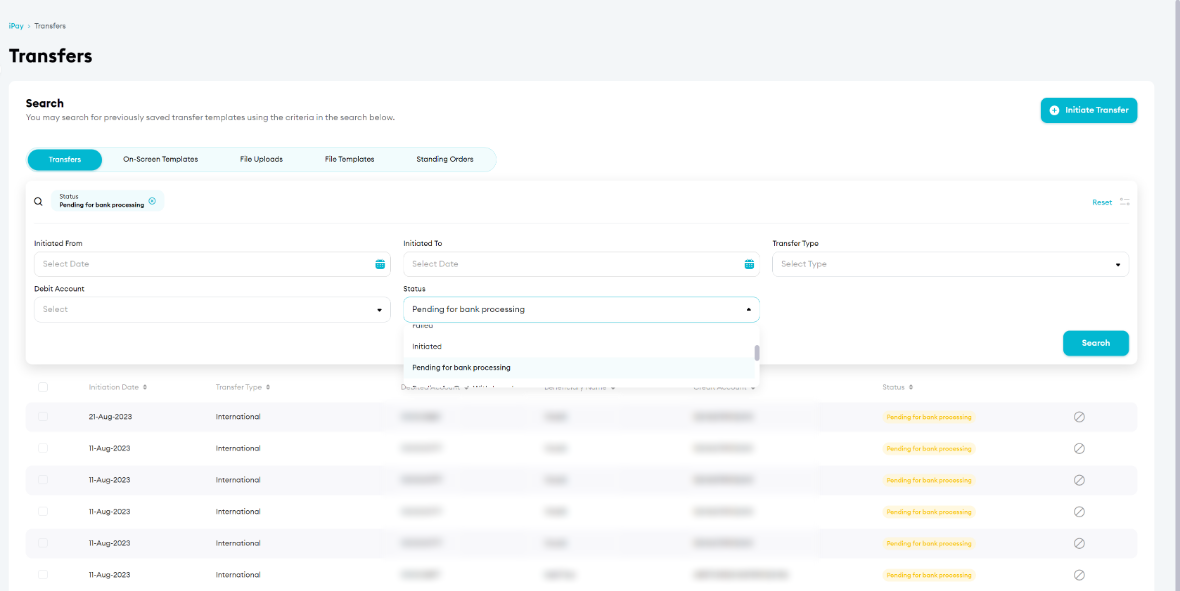
- Open the Status drop-down list.
- Select Pending for Bank Processing.
- Click Search.
Only eligible transactions will be displayed in the search results.
Step 3: Select the Remittance to Stop
- Review the list of transactions.
- Locate the remittance you want to stop.
- Click Stop icon
 next to the selected transaction.
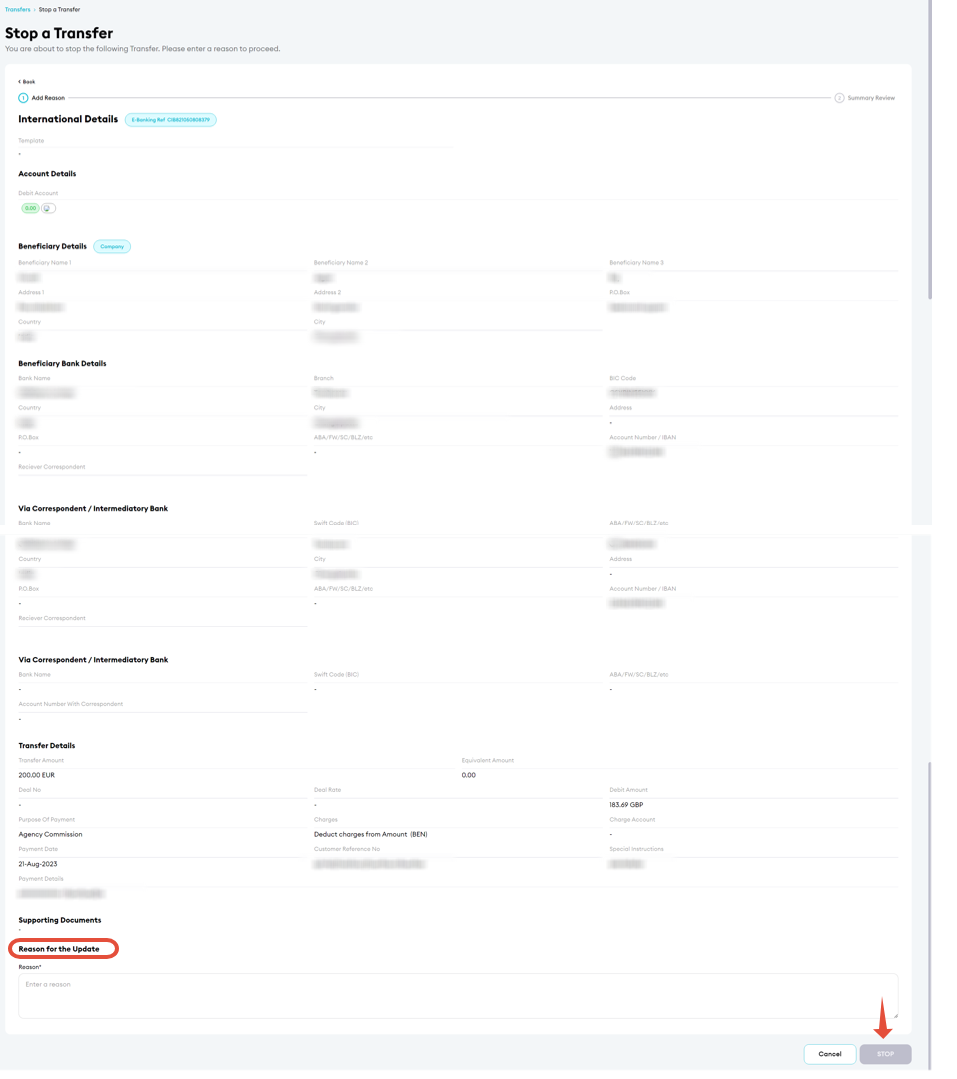
Step 4: Enter the Reason for the Stop Request
- Enter the reason for stopping the remittance.
- Review the entered information.
- Click Stop.
Important: Provide a clear and accurate reason for the stop request to help facilitate processing.
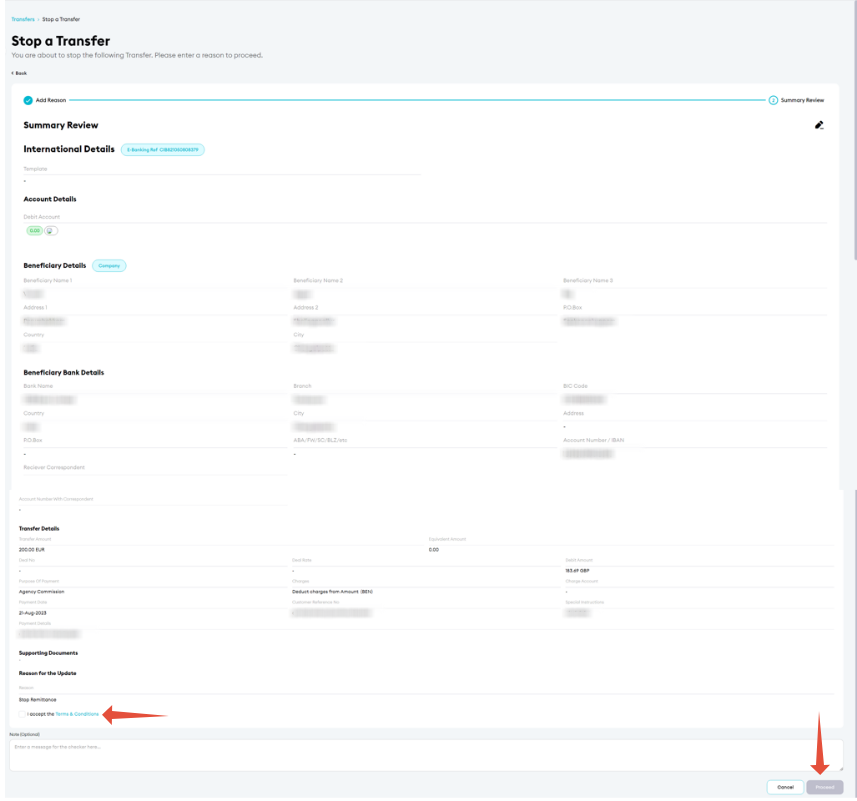
Step 5: Review and Submit
- Review the selected remittance details and the stop request reason.
- Confirm that all information is correct.
- Accept the Terms and Conditions.
- Click Proceed.
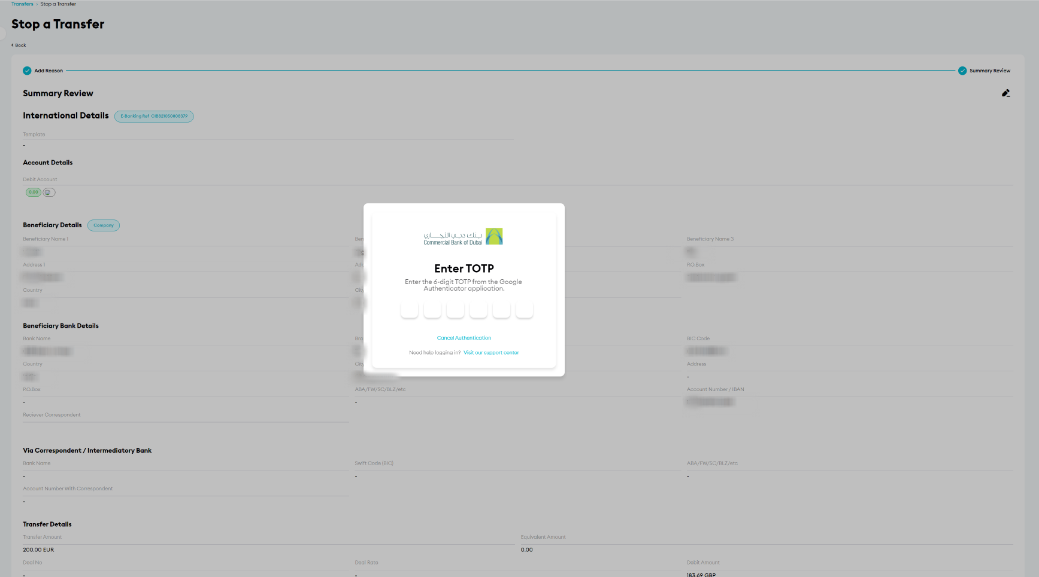
Step 6: Authenticate the Request
Complete authentication using one of the following methods:
iBusiness App Authentication
- A notification will be sent to the registered iBusiness Mobile App.
- Review the request details.
- Approve the request using biometric or device authentication.
Google Authenticator
- Open the Google Authenticator application.
- Enter the generated One-Time Password (OTP).
Once authentication is successful, the stop request will be submitted for processing.
Step 7: Confirmation
After the request has been submitted successfully:
- A confirmation screen will be displayed.
- A unique reference number will be generated.
- The confirmation will include the date and time of submission.
Keep the reference number for future tracking and support enquiries.

Step 8: Approval (If Maker–Checker Is Enabled)
If your organization uses a Maker–Checker approval workflow:
- The request will be routed to the designated Approver.
- The Approver must: Log in to iBusiness
- Navigate to Transactions Hub ➜ Pending Your Authorizations
- Review the request details.
- Select: Approve or Reject
The stop request will only be processed after all required approvals have been completed.
Support Notes / Best Practices
- A remittance can only be stopped while it remains in Pending for Bank Processing status.
- Submit the stop request as early as possible to increase the likelihood of successful cancellation.
- Provide a clear and accurate reason for the stop request.
- Verify the transaction details carefully before submitting the request.
- Retain the generated reference number for audit, tracking, and support purposes.